Moodle Workflow

Moodle Quiz Solver — Risposte AI Immediate

Ottieni suggerimenti AI immediati e spiegazioni dettagliate per ogni domanda del quiz Moodle.

10+ piattaforme
Risposte AI in pochi secondi
Installazione gratis

Question detection

How QuizSolver works on Moodle

Moodle quizzes can mix classic multiple choice, multi-answer questions, cloze-style content, math notation, attachments and long course-specific wording. QuizSolver focuses on the active question block and keeps the answer context together.

Under the hood, QuizSolver uses a universal parser: it compares the question text with nearby answer choices, form controls, images and the visible page layout. Tuned workflows improve reliability on popular platforms, and if standard detection does not return a meaningful question, FocusScan lets you select the exact screen region.

Every saved question can go to history with the answer, explanation and your own note. That means the platform workflow does not stop at a one-time hint: solved tasks become a private review library and practice quiz source.
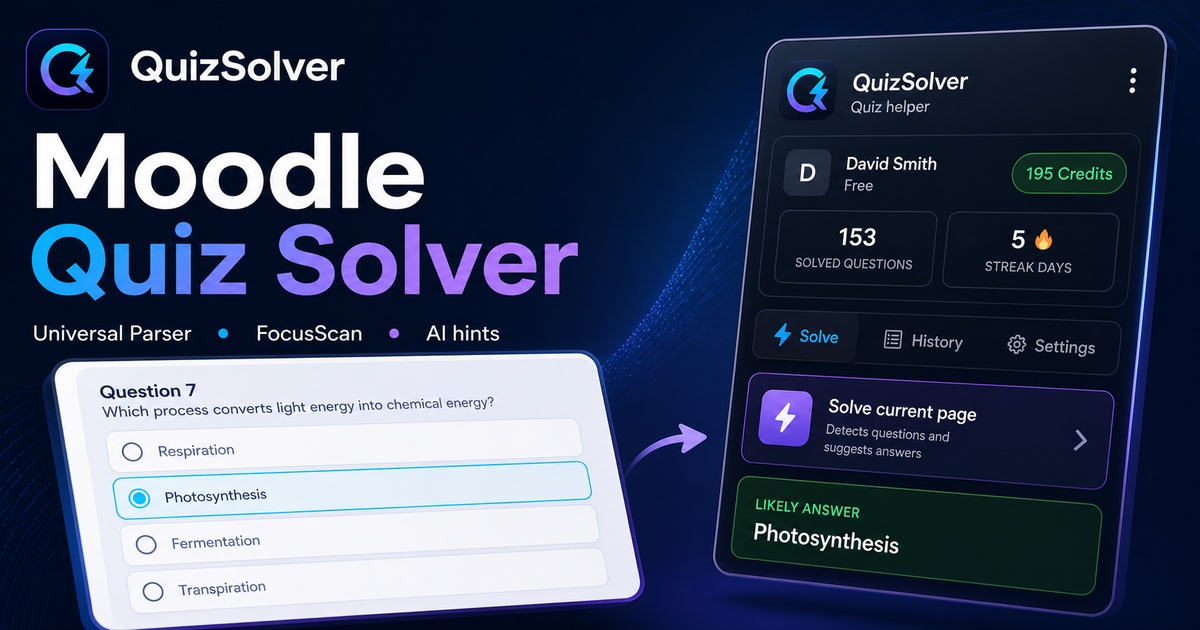
Moodle workflow

How QuizSolver handles Moodle quizzes without mixing questions

Moodle looks simple until a course combines one-page attempts, multi-page attempts, shuffled answers, review restrictions, formulas, images and cloze-style content in one activity. A reliable solver needs to understand the current question block, not scrape every word on the page.

QuizSolver focuses on the active question and the nearest matching answers. That helps prevent navigation labels, review text or feedback from another question from leaking into the AI prompt.

One-page attempts vs multi-page attempts

Some Moodle courses show the whole quiz on one page. Others split the attempt into pages or show only one question at a time. These layouts require different parsing behavior because the solver has to keep each prompt paired with its own controls.

For long one-page attempts, the safest workflow is to solve the visible question block and verify that the collected choices belong to that same block. For multi-page attempts, wait until the next question has fully loaded before triggering the extension again.

  • one-page attempts
  • multi-page attempts
  • shuffled answers
  • review pages and instructor feedback

Shuffled choices and repeated attempts

Moodle often shuffles answer order between attempts. That means an old "option B" is not a stable answer. The meaningful unit is the visible text of the choice, and QuizSolver is designed to reason over that text instead of relying only on position.

This also matters for cached answers. A saved result should match the normalized question and the actual option text on screen before it is reused.

Use review screens as study material

Moodle review screens are valuable even when they do not show the full solution. Saving the question, AI explanation and your own note creates a memory of what was hard, what concept was involved and what to revisit.

Before the next attempt, a student can filter saved questions, mark weak topics and build a short practice quiz from previous Moodle prompts.

Visual workflow

See the Moodle solving flow

A platform page should show the real workflow, not only promise an answer. This preview connects the three parts that matter most: the universal visible-page parser, FocusScan for difficult layouts, and saved explanations in study history.

QuizSolver workflow preview for Moodle: universal parser, FocusScan and saved explanations

Guida passo passo

  1. 1Installa QuizSolver dal Chrome Web Store, fissa l’icona QS e accedi con lo stesso account del sito.
  2. 2Apri il quiz Moodle e attendi che la domanda e le risposte visibili siano caricate.
  3. 3Clicca l’icona QuizSolver e scegli Risolvi pagina corrente. Se il layout è insolito, usa FocusScan.
  4. 4Controlla risposta e spiegazione prima di inviare. Usa Hint mode per un suggerimento discreto.
  5. 5Salva le domande utili in Cronologia e quiz, aggiungi una nota e ripassale più tardi.

Funzioni in questo workflow

  • Rileva domande visibili, opzioni, campi testo, checkbox e menu a tendina.
  • FocusScan aiuta con immagini, layout insoliti e contenuti che non risultano testo normale.
  • Hint mode mostra un indizio senza cliccare al posto tuo.
  • Cronologia, note e quiz di pratica trasformano le risposte in studio.

Studia meglio con Moodle

QuizSolver ti aiuta a capire le domande su Moodle, salvare note e ripassarle efficacemente in seguito.

FAQ

Domande su questo workflow

Come uso QuizSolver su Moodle?+

Apri il quiz Moodle, clicca QS e scegli Risolvi pagina corrente.

E se non rileva la domanda?+

Usa FocusScan e seleziona l’area con domanda e risposte.

Posso ripassare dopo?+

Sì, salva le domande in Cronologia e quiz.

Quali tipi di domande di Moodle supporta QuizSolver?+

QuizSolver rileva risposte a scelta singola, scelta multipla, campi testo, menu a tendina, layout di abbinamento, immagini e contenuti visibili della pagina. Per componenti insoliti, FocusScan legge l’area selezionata dello schermo.

QuizSolver invia automaticamente il mio quiz Moodle?+

No. L’estensione mostra un suggerimento e una spiegazione; il clic finale o l’invio restano sotto il tuo controllo. Hint mode può mostrare solo un indizio discreto.

QuizSolver può risolvere domande con immagini su Moodle?+

Sì. FocusScan permette di selezionare una regione dello schermo, quindi funziona con immagini, frammenti PDF, canvas e layout che non sono disponibili come normale testo della pagina.

Pronto per installare?

Aggiungi QuizSolver a Chrome e inizia dal primo quiz.

Estensione, cronologia, note e pratica funzionano con un solo account.