Canvas 워크플로우

Canvas 퀴즈 풀이 — 실시간 AI 정답 제시

Canvas의 모든 문제에 대해 실시간 AI 정답 제안과 상세한 해설을 확인하세요.

10개 이상의 플랫폼
몇 초 만에 AI 정답 확인
무료 설치

Question detection

How QuizSolver works on Canvas

Canvas LMS can show quizzes through classic quizzes, New Quizzes and embedded LTI tools. QuizSolver reads the visible assessment area first, then FocusScan covers frames, images or custom layouts when the regular DOM is not enough.

Under the hood, QuizSolver uses a universal parser: it compares the question text with nearby answer choices, form controls, images and the visible page layout. Tuned workflows improve reliability on popular platforms, and if standard detection does not return a meaningful question, FocusScan lets you select the exact screen region.

Every saved question can go to history with the answer, explanation and your own note. That means the platform workflow does not stop at a one-time hint: solved tasks become a private review library and practice quiz source.
Canvas workflow

How QuizSolver reads Canvas Classic Quizzes and New Quizzes

Canvas LMS can deliver assessments through Classic Quizzes, New Quizzes and external LTI tools. Classic Quizzes often expose predictable question blocks, while New Quizzes can behave more like a dynamic app with cards, media and custom controls.

QuizSolver starts with the visible assessment area. If Canvas or an embedded tool renders content in a way that is hard to parse as normal text, FocusScan can capture the exact question region instead.

Classic Quizzes vs New Quizzes

Classic Quizzes usually provide a clearer relationship between the prompt and answer choices. New Quizzes may split status text, answer controls and media across multiple components, which makes raw page text less reliable.

The important rule is proximity: pair the closest question text with the closest answer controls, then ignore course navigation, assignment titles and unrelated instructions.

  • Classic Quizzes
  • New Quizzes
  • image prompts
  • embedded LTI layouts

Image, formula and file-based questions

Canvas courses often include diagrams, screenshots, formulas and file previews. If the meaningful part of the prompt is an image, a normal parser may see only an empty container or an alt label that is not enough for a good answer.

FocusScan is more predictable in that case. Select the prompt, choices and relevant visual. Avoid full-page captures that include the course sidebar, comments, due dates or navigation.

Keep explanations before feedback disappears

Canvas feedback is not always available forever. An instructor can limit review visibility, hide correct answers or close the attempt after a deadline. Saving the AI explanation gives students a private study trail independent of those settings.

Before a final exam or retake, saved Canvas questions can be filtered into a focused practice set instead of being lost inside the LMS.

Visual workflow

See the Canvas solving flow

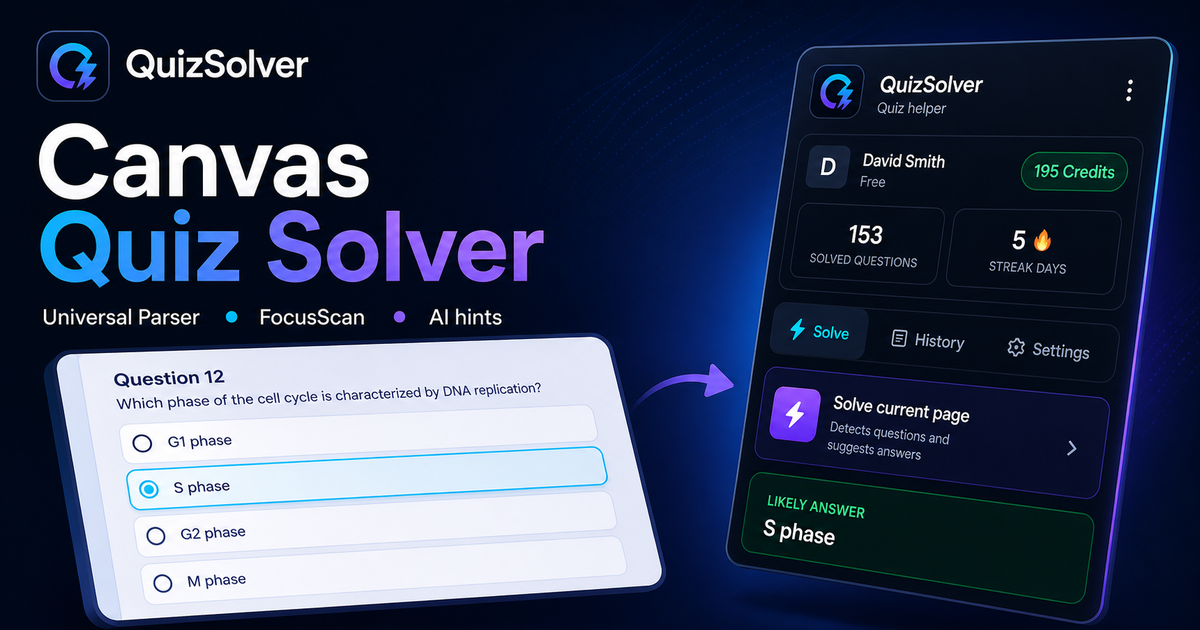
A platform page should show the real workflow, not only promise an answer. This preview connects the three parts that matter most: the universal visible-page parser, FocusScan for difficult layouts, and saved explanations in study history.

QuizSolver workflow preview for Canvas: universal parser, FocusScan and saved explanations

단계별 설정 가이드

  1. 1Canvas 퀴즈 페이지를 열고 문제와 선택지가 완전히 로드될 때까지 기다립니다.
  2. 2QuizSolver 아이콘을 클릭하고 '현재 페이지 풀기'를 선택하세요. 특수 레이아웃은 FocusScan을 사용합니다.
  3. 3추천 정답과 해설을 확인하세요. 자동 클릭 없이 힌트만 보려면 힌트 모드를 켜세요.

주요 워크플로우 기능

  • ✦ 풀이를 시작하기 전에 문제와 선택지가 완전히 표시되었는지 확인하세요.
  • ✦ 내용이 이미지, 캔버스, PDF 또는 맞춤형 뷰어인 경우 FocusScan을 사용하세요.
  • ✦ 자동 클릭 대신 은은한 강조 표시만 원하시면 힌트 모드를 활성화하세요.
  • ✦ 어려운 문제를 메모와 함께 저장하여 시험 전 복습 자료로 활용하세요.

Canvas 완벽 대비 학습

QuizSolver는 Canvas 문제를 완벽히 이해하고 오답 노트를 작성하여 시험 전 효과적으로 복습하도록 돕습니다.

FAQ

이 워크플로우에 대한 자주 묻는 질문

QuizSolver가 Canvas에서 어떻게 작동하나요?+

QuizSolver는 Canvas의 문제와 선택지를 읽고 AI를 통해 실시간으로 정답과 해설을 제공합니다.

문제가 자동으로 감지되지 않으면 어떻게 하나요?+

FocusScan 기능을 사용하여 문제 영역을 마우스로 드래그하면 즉시 AI로 전송할 수 있습니다.

나중에 문제를 다시 복습할 수 있나요?+

네, 해결한 문제를 히스토리에 저장하고 메모를 추가하며 복습 모의고사를 풀 수 있습니다.

QuizSolver는 Canvas에서 어떤 문제 유형을 지원하나요?+

QuizSolver는 객관식, 단일 선택, 주관식 입력, 드롭다운, 연결형 및 FocusScan을 통한 이미지 문제를 지원합니다.

QuizSolver가 Canvas에서 답안을 자동으로 제출하나요?+

아닙니다. 확장 프로그램은 추천 정답과 해설을 표시하지만, 최종 선택 및 제출 결정은 항상 사용자 본인이 직접 합니다.

QuizSolver가 Canvas의 이미지 문제도 풀 수 있나요?+

네. FocusScan을 통해 화면의 원하는 영역을 지정하여 이미지, 도표, 수식을 정확하게 OCR로 판독할 수 있습니다.

지금 시작하기

QuizSolver를 Chrome에 추가하세요

무료 10 크레딧으로 시작하세요. 설치는 몇 초 만에 완료됩니다.