Kahoot 워크플로우

Kahoot 퀴즈 풀이 — 실시간 AI 정답 제시

Kahoot의 모든 문제에 대해 실시간 AI 정답 제안과 상세한 해설을 확인하세요.

10개 이상의 플랫폼
몇 초 만에 AI 정답 확인
무료 설치

Question detection

How QuizSolver works on Kahoot

Kahoot is different because some games show the question on the player screen while others show only colored answer tiles. QuizSolver supports both visible-question mode and Quiz ID answer-bank mode for hidden-question games.

Under the hood, QuizSolver uses a universal parser: it compares the question text with nearby answer choices, form controls, images and the visible page layout. Tuned workflows improve reliability on popular platforms, and if standard detection does not return a meaningful question, FocusScan lets you select the exact screen region.

Every saved question can go to history with the answer, explanation and your own note. That means the platform workflow does not stop at a one-time hint: solved tasks become a private review library and practice quiz source.
Practical workflow

How to use QuizSolver reliably on Kahoot

A useful Kahoot solver page should explain the real workflow, not only repeat that AI answers are available. QuizSolver first reads visible question structure, nearby choices, field types and page context before it asks AI for a suggestion.

This workflow is designed for real quiz pages: radio answers, checkboxes, text inputs, image prompts, long instructions and custom layouts that can change between schools, courses and teachers.

Start with the visible question

Wait until the question and answer choices have fully loaded. On platforms that render quiz cards in stages, clicking too early can capture a heading, question number or navigation text instead of the actual prompt.

Check the answer format

Single-choice, multiple-answer, dropdown and short-answer questions need different AI instructions. QuizSolver tries to detect the active control type so the suggested answer matches what the page can actually accept.

Save hard questions for review

The biggest study value appears after the first answer. Saved questions, explanations and notes create a private review library that makes weak topics easier to find before the next attempt.

Visual workflow

See the Kahoot solving flow

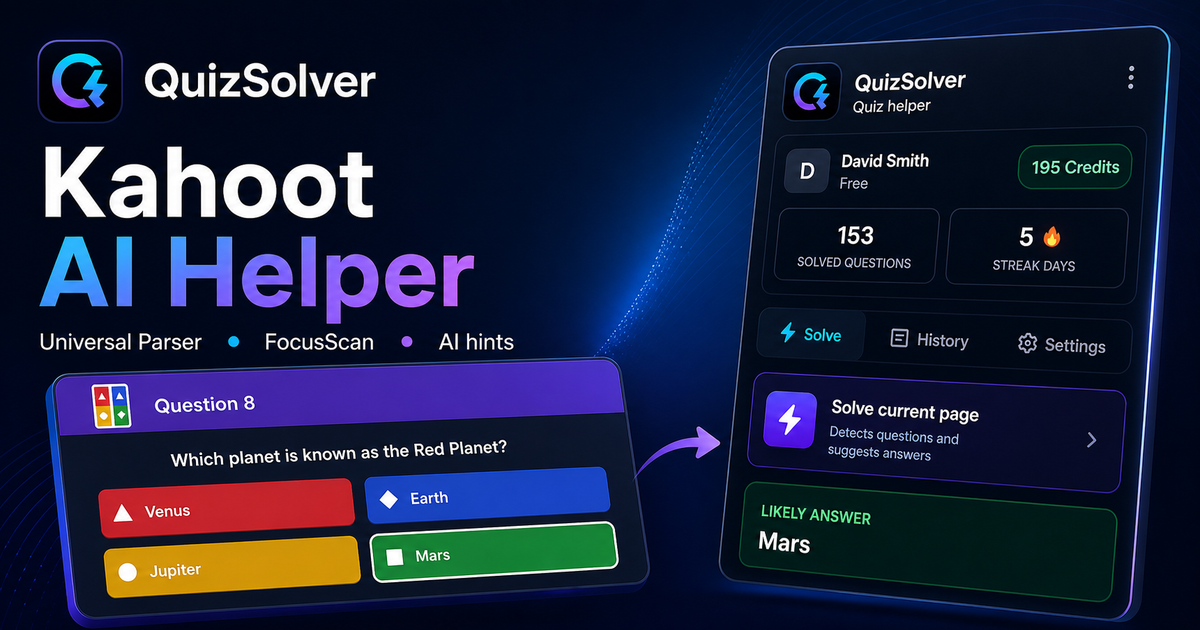
A platform page should show the real workflow, not only promise an answer. This preview connects the three parts that matter most: the universal visible-page parser, FocusScan for difficult layouts, and saved explanations in study history.

QuizSolver workflow preview for Kahoot: universal parser, FocusScan and saved explanations

단계별 설정 가이드

  1. 1kahoot.it/instructions 링크나 게임 화면을 열고 QS 아이콘을 클릭합니다.
  2. 2문제와 정답 타일이 화면에 보이면 '전체 퀴즈 풀기'를 선택하세요.
  3. 3호스트가 문제를 숨긴 경우 Kahoot URL의 quizId= 뒤의 값을 복사하여 패널에 붙여넣으세요.
  4. 4검색 가능한 정답 모음에서 정답을 확인하세요. Quiz ID 모드는 크레딧을 소모하지 않습니다.
  5. 5플로팅 패널을 열어두고 직접 풀고 싶을 때는 언제든 자동 모드를 중지할 수 있습니다.

주요 워크플로우 기능

  • ✦ 두 가지 모드: 화면 문제 자동 풀기 또는 Quiz ID 정답 모음 검색.
  • ✦ Quiz ID 모드는 완전 무료이며 AI 크레딧을 전혀 소모하지 않습니다.
  • ✦ 데스크톱과 모바일 화면 모두에서 편리한 반응형 플로팅 컨트롤 패널.
  • ✦ 대기, 풀이 중, 중지 상태를 실시간으로 보여주는 명확한 상태 표시기.

QuizSolver는 Kahoot 문제를 완벽히 이해하고 오답 노트를 작성하여 시험 전 효과적으로 복습하도록 돕습니다.

Kahoot 완벽 대비 학습

QuizSolver는 Kahoot 문제를 완벽히 이해하고 오답 노트를 작성하여 시험 전 효과적으로 복습하도록 돕습니다.

FAQ

이 워크플로우에 대한 자주 묻는 질문

Quiz ID는 Kahoot 게임 PIN과 같은 것인가요?+

아닙니다. PIN은 실시간 게임 참여용 번호이며, Quiz ID는 퀴즈 URL의 quizId= 뒤에 있는 퀴즈 고유 식별자입니다.

Kahoot에서 자동 풀기가 시작되지 않을 때는 왜 그런가요?+

호스트가 플레이어 화면에서 문제를 숨긴 경우, Quiz ID 모드를 사용하여 정답 모음에 직접 접근하세요.

Quiz ID 모드는 크레딧을 소모하나요?+

아닙니다. AI에 새 요청을 보내지 않고 알려진 정답 모음을 표시하므로 크레딧이 소모되지 않습니다.

QuizSolver는 Kahoot에서 어떤 문제 유형을 지원하나요?+

QuizSolver는 객관식, 단일 선택, 주관식 입력, 드롭다운, 연결형 및 FocusScan을 통한 이미지 문제를 지원합니다.

QuizSolver가 Kahoot에서 답안을 자동으로 제출하나요?+

아닙니다. 확장 프로그램은 추천 정답과 해설을 표시하지만, 최종 선택 및 제출 결정은 항상 사용자 본인이 직접 합니다.

문제가 숨겨져 있어도 Quiz ID 모드가 작동하나요?+

네. 호스트가 문제를 숨긴 경우에도 Quiz ID 모드를 통해 크레딧 소모 없이 정답 모음을 검색할 수 있습니다.

지금 시작하기

QuizSolver를 Chrome에 추가하세요

무료 10 크레딧으로 시작하세요. 설치는 몇 초 만에 완료됩니다.