Testportal Fluxo

Testportal Quiz Solver — Respostas de IA Instantâneas

Obtenha sugestões instantâneas de IA e explicações detalhadas para cada pergunta no Testportal.

Mais de 10 plataformas
Respostas de IA em segundos
Instalação gratuita

Question detection

How QuizSolver works on Testportal

Testportal often combines timers, one-question screens, radio answers, checkboxes and images inside a focused test interface. QuizSolver keeps the work in the browser side panel so the question can be reviewed without leaving the test tab.

Under the hood, QuizSolver uses a universal parser: it compares the question text with nearby answer choices, form controls, images and the visible page layout. Tuned workflows improve reliability on popular platforms, and if standard detection does not return a meaningful question, FocusScan lets you select the exact screen region.

Every saved question can go to history with the answer, explanation and your own note. That means the platform workflow does not stop at a one-time hint: solved tasks become a private review library and practice quiz source.
Testportal workflow

How QuizSolver handles Testportal quizzes in practice

Testportal is one of the platforms where a generic AI copy-paste workflow breaks down quickly. A quiz can show one question per screen, a running timer, shuffled answers, focus-loss warnings and image-based prompts in the same attempt.

QuizSolver treats Testportal as a structured workflow. It looks for the active prompt, pairs it with the currently visible answer choices and detects whether the question expects one answer or multiple answers before sending a compact request to AI.

Timed one-question screens

Many Testportal attempts show only one question at a time. That can make detection cleaner, but only after the page has fully rendered. If the extension is triggered while the next card is still loading, the visible text may be only a question number, a spinner or navigation labels.

The most reliable flow is to wait until the full question and answer set are visible, run Solve current page, review the suggestion and continue. If the same normalized question appears again, QuizSolver can reuse saved context instead of treating it as a brand-new prompt.

  • single-question screens
  • radio and checkbox answers
  • shuffled answer order
  • embedded images and diagrams

When FocusScan is better than page parsing

Some Testportal questions are not exposed as clean page text. Teachers may use screenshots, PDF fragments, diagrams or locked content. In those cases FocusScan gives AI the missing visual context without relying on brittle HTML selectors.

The selection should be tight: include the prompt and answer choices, but leave out the timer, navigation buttons, side menus and browser chrome. A smaller, cleaner capture produces better OCR and reduces the chance of answering the wrong text.

  • select the prompt and answers only
  • exclude timers and navigation
  • use it for images or locked text
  • save the explanation afterward

Turn the attempt into study material

The strongest Testportal workflow starts after the first answer. Saving the question, answer and explanation turns a temporary test screen into a private review item. Notes are useful for marking why the question was hard: concept gap, vocabulary, formula, definition or careless reading.

Later, those saved questions can become a practice set. That gives the page long-term learning value instead of reducing it to a one-time answer lookup.

Visual workflow

See the Testportal solving flow

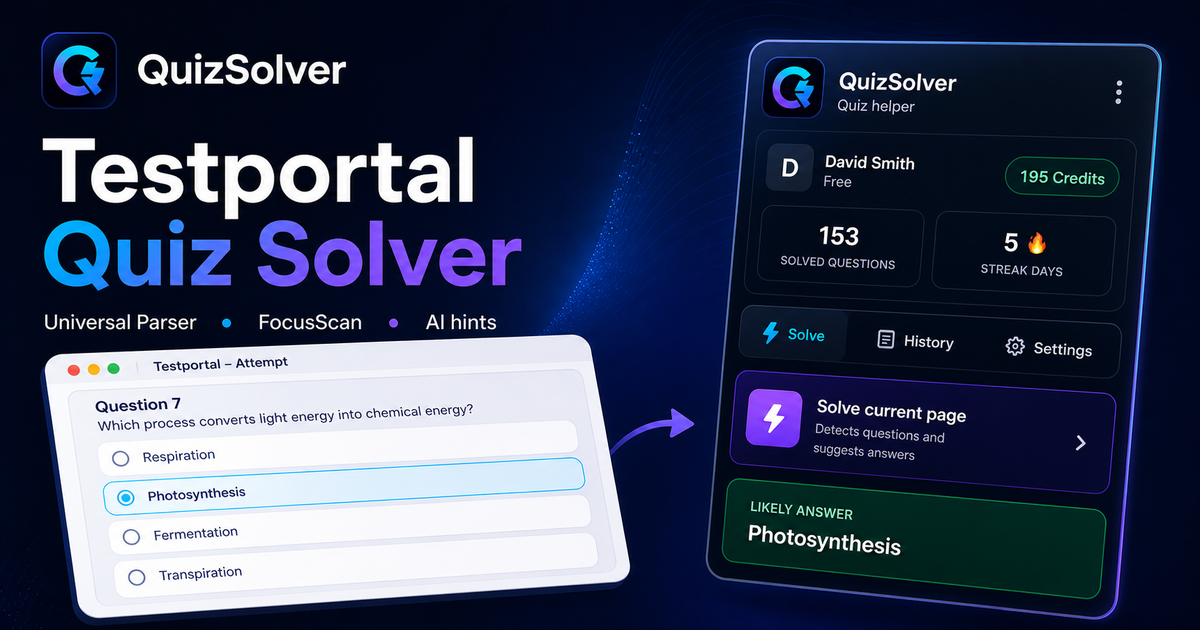
A platform page should show the real workflow, not only promise an answer. This preview connects the three parts that matter most: the universal visible-page parser, FocusScan for difficult layouts, and saved explanations in study history.

QuizSolver workflow preview for Testportal: universal parser, FocusScan and saved explanations

Passo a passo de configuração

  1. 1Instale o QuizSolver pela Chrome Web Store, fixe o ícone do QS e faça login na mesma conta do site.
  2. 2Abra seu quiz no Testportal e aguarde até que a pergunta e todas as opções visíveis estejam carregadas.
  3. 3Clique no ícone do QuizSolver e escolha Resolver página atual. Se o layout for diferenciado, use o FocusScan e selecione a área da pergunta.
  4. 4Confira a sugestão de resposta e a explicação antes de enviar. Ative o Modo Dica para um destaque discreto sem clique automático.
  5. 5Salve perguntas úteis em Histórico e quiz, adicione anotações e crie um simulado prático para revisar mais tarde.

Recursos deste fluxo

  • ✦ Identifica perguntas visíveis, alternativas, caixas de seleção e menus suspensos.
  • ✦ O FocusScan ajuda com imagens, PDFs, diagramas e conteúdos que não aparecem como texto simples.
  • ✦ O Modo Dica indica a resposta provável de forma sutil, sem interferir no envio.
  • ✦ Histórico, anotações e simulados transformam cada resposta em material de estudo.

Estude melhor no Testportal

O QuizSolver ajuda você a entender perguntas no Testportal, salvar anotações e revisar de forma eficiente antes dos exames.

FAQ

Perguntas sobre este fluxo

Como inicio o QuizSolver no Testportal?+

Abra o quiz no Testportal, clique no ícone do QS no Chrome e selecione Resolver página atual.

E se a pergunta não for detectada automaticamente?+

Use o FocusScan e desenhe um retângulo ao redor da pergunta e das alternativas na tela.

Posso revisar as perguntas mais tarde?+

Sim. Todas as perguntas resolvidas podem ser salvas em Histórico e quiz para gerar simulados de revisão.

Quais tipos de perguntas do Testportal são compatíveis com o QuizSolver?+

O QuizSolver reconhece múltipla escolha, escolha única, campos de texto, menus suspensos, correspondência de colunas, imagens e conteúdo visível. Para elementos especiais, o FocusScan lê a região da tela selecionada.

O QuizSolver envia meu teste no Testportal automaticamente?+

Não. A extensão exibe a resposta sugerida e a explicação, mas a decisão final de marcar e enviar é sempre sua. O Modo Dica pode exibir apenas um indicativo discreto.

O QuizSolver resolve perguntas com imagens no Testportal?+

Sim. O FocusScan permite selecionar uma área da tela, funcionando com imagens, diagramas, fórmulas, PDFs e conteúdos que não estão expostos como texto comum.

Pronto para instalar?

Adicione o QuizSolver ao Chrome e comece com o seu primeiro quiz.

Extensão, histórico de perguntas, anotações e simulados funcionam em uma única conta.