Testportal Workflow

Testportal Quiz Solver — AI-відповіді Миттєво

Отримуй миттєві AI-підказки і детальні пояснення до кожного питання квізу Testportal.

10+ платформ
AI-відповіді за секунди
Безкоштовна установка

Question detection

How QuizSolver works on Testportal

Testportal often combines timers, one-question screens, radio answers, checkboxes and images inside a focused test interface. QuizSolver keeps the work in the browser side panel so the question can be reviewed without leaving the test tab.

Under the hood, QuizSolver uses a universal parser: it compares the question text with nearby answer choices, form controls, images and the visible page layout. Tuned workflows improve reliability on popular platforms, and if standard detection does not return a meaningful question, FocusScan lets you select the exact screen region.

Every saved question can go to history with the answer, explanation and your own note. That means the platform workflow does not stop at a one-time hint: solved tasks become a private review library and practice quiz source.
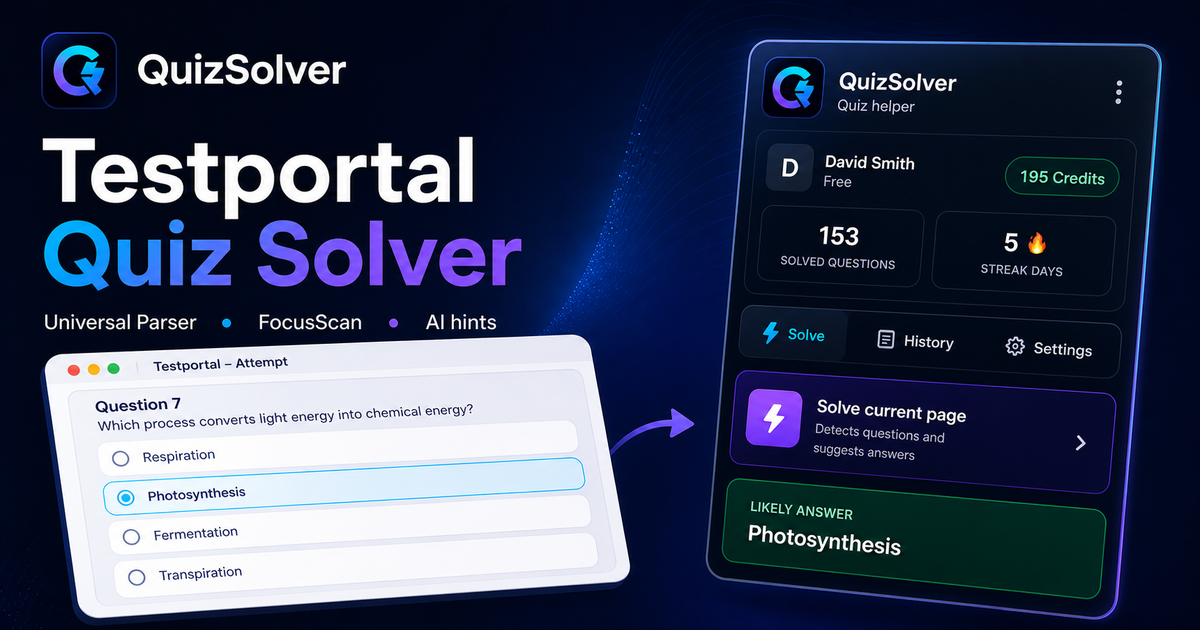
Testportal workflow

How QuizSolver handles Testportal quizzes in practice

Testportal is one of the platforms where a generic AI copy-paste workflow breaks down quickly. A quiz can show one question per screen, a running timer, shuffled answers, focus-loss warnings and image-based prompts in the same attempt.

QuizSolver treats Testportal as a structured workflow. It looks for the active prompt, pairs it with the currently visible answer choices and detects whether the question expects one answer or multiple answers before sending a compact request to AI.

Timed one-question screens

Many Testportal attempts show only one question at a time. That can make detection cleaner, but only after the page has fully rendered. If the extension is triggered while the next card is still loading, the visible text may be only a question number, a spinner or navigation labels.

The most reliable flow is to wait until the full question and answer set are visible, run Solve current page, review the suggestion and continue. If the same normalized question appears again, QuizSolver can reuse saved context instead of treating it as a brand-new prompt.

  • single-question screens
  • radio and checkbox answers
  • shuffled answer order
  • embedded images and diagrams

When FocusScan is better than page parsing

Some Testportal questions are not exposed as clean page text. Teachers may use screenshots, PDF fragments, diagrams or locked content. In those cases FocusScan gives AI the missing visual context without relying on brittle HTML selectors.

The selection should be tight: include the prompt and answer choices, but leave out the timer, navigation buttons, side menus and browser chrome. A smaller, cleaner capture produces better OCR and reduces the chance of answering the wrong text.

  • select the prompt and answers only
  • exclude timers and navigation
  • use it for images or locked text
  • save the explanation afterward

Turn the attempt into study material

The strongest Testportal workflow starts after the first answer. Saving the question, answer and explanation turns a temporary test screen into a private review item. Notes are useful for marking why the question was hard: concept gap, vocabulary, formula, definition or careless reading.

Later, those saved questions can become a practice set. That gives the page long-term learning value instead of reducing it to a one-time answer lookup.

Visual workflow

See the Testportal solving flow

A platform page should show the real workflow, not only promise an answer. This preview connects the three parts that matter most: the universal visible-page parser, FocusScan for difficult layouts, and saved explanations in study history.

QuizSolver workflow preview for Testportal: universal parser, FocusScan and saved explanations

Покрокова інструкція

  1. 1Встанови QuizSolver з Chrome Web Store, закріпи іконку QS і увійди в той самий акаунт, що й на сайті.
  2. 2Відкрий квіз Testportal і дочекайся, поки завантажаться питання та видимі варіанти відповіді.
  3. 3Натисни іконку QuizSolver і вибери Solve current page. Якщо макет незвичний, використай FocusScan.
  4. 4Перевір запропоновану відповідь і пояснення перед відправкою. Увімкни Hint mode для непомітної підказки.
  5. 5Збережи корисні питання в History & quiz, додай нотатку і повтори їх пізніше.

Функції цього сценарію

  • Розпізнає видимі питання, варіанти, текстові поля, checkbox і dropdown.
  • FocusScan допомагає з картинками, незвичними макетами та вмістом, який не читається як звичайний текст.
  • Hint mode показує підказку без фінального кліку.
  • Історія, нотатки і тренувальні квізи перетворюють відповіді на навчання.

Навчайся краще з Testportal

QuizSolver допомагає швидше зрозуміти питання на Testportal, зберегти нотатки і ефективно повторити їх пізніше.

FAQ

Питання про цей сценарій

Як запустити QuizSolver на Testportal?+

Відкрий квіз Testportal, натисни QS і вибери Solve current page.

Що робити, якщо питання не знайдено?+

Використай FocusScan і виділи область з питанням та відповідями.

Чи можна повторити питання пізніше?+

Так, збережи їх у History & quiz і створи тренувальний квіз.

Які типи питань Testportal підтримує QuizSolver?+

QuizSolver розпізнає один варіант відповіді, кілька варіантів, текстові поля, dropdown, завдання на відповідність, зображення та видимий вміст сторінки. Для незвичних компонентів FocusScan читає вибрану область екрана.

Чи QuizSolver автоматично надсилає мій квіз Testportal?+

Ні. Розширення показує запропоновану відповідь і пояснення, а фінальний клік або відправлення залишаються під твоїм контролем. Hint mode може показати лише непомітну підказку.

Чи може QuizSolver розв’язувати питання із зображеннями на Testportal?+

Так. FocusScan дозволяє вибрати область екрана, тому працює із зображеннями, PDF-фрагментами, canvas та макетами, які не доступні як звичайний текст сторінки.

Готовий встановити?

Додай QuizSolver у Chrome і почни з першого квізу.

Розширення, історія питань, нотатки і практика працюють з одного акаунта.