Canvas الخطوات

حل اختبارات Canvas — إجابات فورية بالذكاء الاصطناعي

احصل على اقتراحات فورية وشروحات تفصيلية لكل سؤال في اختبارات Canvas.

10+ منصات
إجابات بالذكاء الاصطناعي في ثوانٍ
تثبيت مجاني

Question detection

How QuizSolver works on Canvas

Canvas LMS can show quizzes through classic quizzes, New Quizzes and embedded LTI tools. QuizSolver reads the visible assessment area first, then FocusScan covers frames, images or custom layouts when the regular DOM is not enough.

Under the hood, QuizSolver uses a universal parser: it compares the question text with nearby answer choices, form controls, images and the visible page layout. Tuned workflows improve reliability on popular platforms, and if standard detection does not return a meaningful question, FocusScan lets you select the exact screen region.

Every saved question can go to history with the answer, explanation and your own note. That means the platform workflow does not stop at a one-time hint: solved tasks become a private review library and practice quiz source.
Canvas workflow

How QuizSolver reads Canvas Classic Quizzes and New Quizzes

Canvas LMS can deliver assessments through Classic Quizzes, New Quizzes and external LTI tools. Classic Quizzes often expose predictable question blocks, while New Quizzes can behave more like a dynamic app with cards, media and custom controls.

QuizSolver starts with the visible assessment area. If Canvas or an embedded tool renders content in a way that is hard to parse as normal text, FocusScan can capture the exact question region instead.

Classic Quizzes vs New Quizzes

Classic Quizzes usually provide a clearer relationship between the prompt and answer choices. New Quizzes may split status text, answer controls and media across multiple components, which makes raw page text less reliable.

The important rule is proximity: pair the closest question text with the closest answer controls, then ignore course navigation, assignment titles and unrelated instructions.

  • Classic Quizzes
  • New Quizzes
  • image prompts
  • embedded LTI layouts

Image, formula and file-based questions

Canvas courses often include diagrams, screenshots, formulas and file previews. If the meaningful part of the prompt is an image, a normal parser may see only an empty container or an alt label that is not enough for a good answer.

FocusScan is more predictable in that case. Select the prompt, choices and relevant visual. Avoid full-page captures that include the course sidebar, comments, due dates or navigation.

Keep explanations before feedback disappears

Canvas feedback is not always available forever. An instructor can limit review visibility, hide correct answers or close the attempt after a deadline. Saving the AI explanation gives students a private study trail independent of those settings.

Before a final exam or retake, saved Canvas questions can be filtered into a focused practice set instead of being lost inside the LMS.

Visual workflow

See the Canvas solving flow

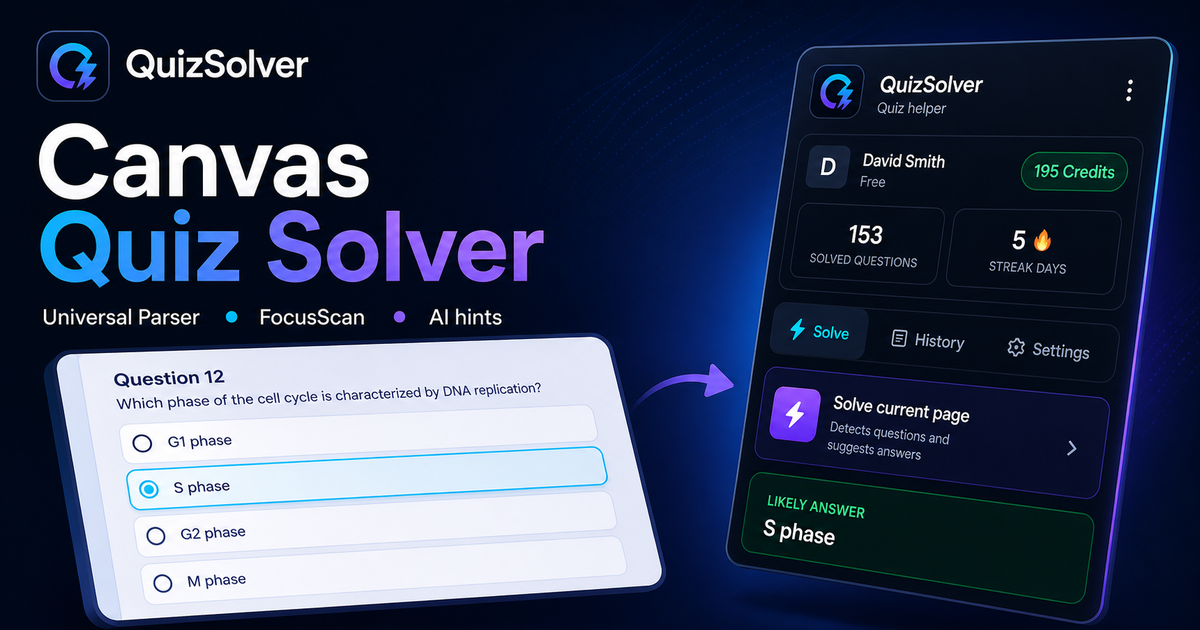
A platform page should show the real workflow, not only promise an answer. This preview connects the three parts that matter most: the universal visible-page parser, FocusScan for difficult layouts, and saved explanations in study history.

QuizSolver workflow preview for Canvas: universal parser, FocusScan and saved explanations

خطوات الإعداد والحل

  1. 1ثبّت إضافة QuizSolver من متجر Chrome Web Store، وثبّت أيقونة QS وسجل الدخول إلى حسابك.
  2. 2افتح اختبارك في Canvas وانتظر حتى يكتمل تحميل السؤال الحالي وكافة خيارات الإجابة.
  3. 3انقر على أيقونة QuizSolver واختر حل الصفحة الحالية. للتصميمات المعقدة أو الصور، استخدم FocusScan وحدد منطقة السؤال.
  4. 4راجع الإجابة المقترحة والشرح قبل الإرسال. فعّل وضع التلميح للحصول على إشارة سرية بدون نقر تلقائي.
  5. 5احفظ الأسئلة المهمة في السجل والتدريب، وأضف ملاحظاتك وأنشئ اختبارات مراجعة لاحقاً.

قائمة خطوات الحل

  • ✦ يتعرف تلقائياً على الأسئلة المرئية والخيارات المتعددة وحقول الإدخال والقوائم.
  • ✦ تتيح ميزة FocusScan قراءة الأسئلة داخل الصور وملفات PDF والمخططات.
  • ✦ يوضح وضع التلميح الإجابة الصحيحة بشكل خفي وسلس دون تدخل مباشر.
  • ✦ يحول السجل والملاحظات كل سؤال محلول إلى أداة مراجعة ذكية للاختبارات.

تعلم بذكاء في Canvas

يساعدك QuizSolver على فهم أسئلة Canvas وحفظ الملاحظات والمراجعة بكفاءة قبل الامتحانات.

المنصات

أدلة QuizSolver الأخرى

اختر منصتك واطلع على دليل خطوة بخطوة مخصص لنظام الاختبارات.

FAQ

الأسئلة الشائعة حول هذا الدليل

كيف أشغل QuizSolver على Canvas؟+

افتح الاختبار في Canvas، وانقر على أيقونة QS في Chrome ثم اختر حل الصفحة الحالية.

ماذا أفعل إذا لم يتم اكتشاف السؤال تلقائياً؟+

استخدم FocusScan وحدد منطقة السؤال والخيارات بالماوس لإرسالها للتحليل فوراً.

هل يمكنني مراجعة الأسئلة لاحقاً؟+

نعم، يمكنك حفظ أي سؤال في السجل والتدريب وإضافة ملاحظاتك وإنشاء اختبارات تجريبية.

ما أنواع الأسئلة التي يدعمها QuizSolver في Canvas؟+

يتعرف QuizSolver على أسئلة الاختيار من متعدد، والإجابة المفردة، وحقول النصوص، والقوائم المنسدلة، والمطابقة، والصور، والمحتوى المرئي. وللعناصر المعقدة، يقرأ FocusScan المنطقة المحددة بدقة.

هل يقوم QuizSolver بإرسال إجاباتي تلقائياً في Canvas؟+

لا، تعرض الإضافة الإجابة المقترحة والشرح، لكن قرار الاختيار والإرسال النهائي يعود إليك دائماً. ويمكن لوضع التلميح إظهار إشارة خفية فقط.

هل يحل QuizSolver الأسئلة التي تحتوي على صور في Canvas؟+

نعم، يتيح FocusScan تحديد أي منطقة على الشاشة لقراءة الصور والرسوم البيانية والمعادلات وملفات PDF التي لا تظهر كنصوص عادية.

جاهز للتثبيت؟

أضف QuizSolver إلى Chrome وابدأ مع أول اختبار لك.

تعمل الإضافة وسجل الأسئلة والملاحظات والاختبارات التدريبية من حساب واحد.