Moodle الخطوات

حل اختبارات Moodle — إجابات فورية بالذكاء الاصطناعي

احصل على اقتراحات فورية وشروحات تفصيلية لكل سؤال في اختبارات Moodle.

10+ منصات
إجابات بالذكاء الاصطناعي في ثوانٍ
تثبيت مجاني

Question detection

How QuizSolver works on Moodle

Moodle quizzes can mix classic multiple choice, multi-answer questions, cloze-style content, math notation, attachments and long course-specific wording. QuizSolver focuses on the active question block and keeps the answer context together.

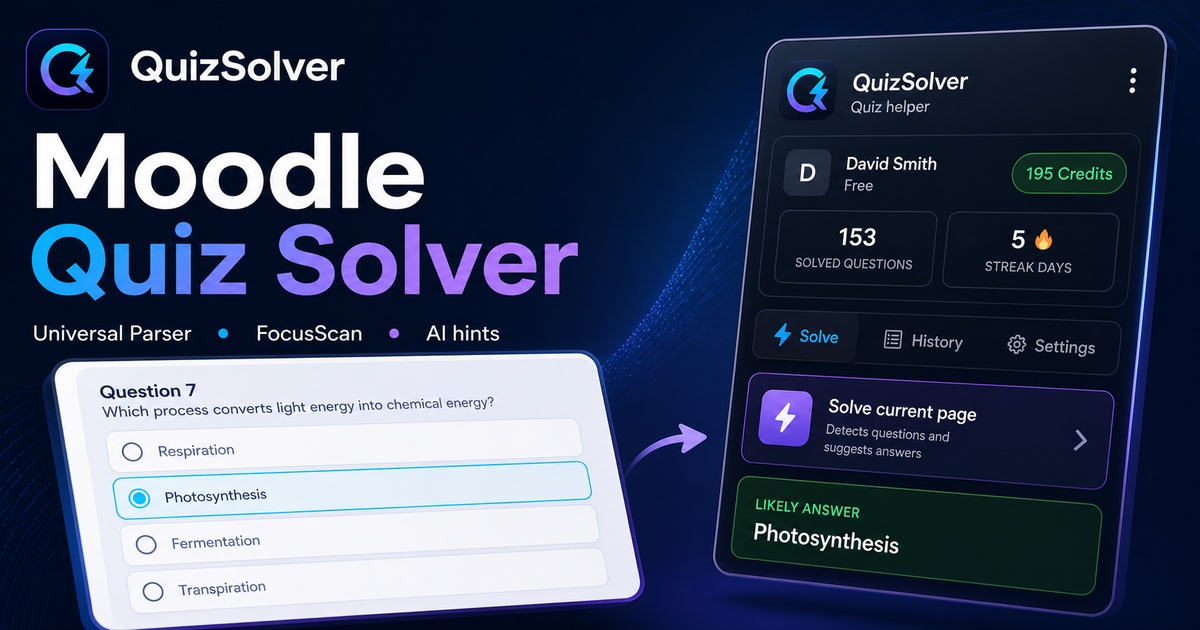
Under the hood, QuizSolver uses a universal parser: it compares the question text with nearby answer choices, form controls, images and the visible page layout. Tuned workflows improve reliability on popular platforms, and if standard detection does not return a meaningful question, FocusScan lets you select the exact screen region.

Every saved question can go to history with the answer, explanation and your own note. That means the platform workflow does not stop at a one-time hint: solved tasks become a private review library and practice quiz source.
Moodle workflow

How QuizSolver handles Moodle quizzes without mixing questions

Moodle looks simple until a course combines one-page attempts, multi-page attempts, shuffled answers, review restrictions, formulas, images and cloze-style content in one activity. A reliable solver needs to understand the current question block, not scrape every word on the page.

QuizSolver focuses on the active question and the nearest matching answers. That helps prevent navigation labels, review text or feedback from another question from leaking into the AI prompt.

One-page attempts vs multi-page attempts

Some Moodle courses show the whole quiz on one page. Others split the attempt into pages or show only one question at a time. These layouts require different parsing behavior because the solver has to keep each prompt paired with its own controls.

For long one-page attempts, the safest workflow is to solve the visible question block and verify that the collected choices belong to that same block. For multi-page attempts, wait until the next question has fully loaded before triggering the extension again.

  • one-page attempts
  • multi-page attempts
  • shuffled answers
  • review pages and instructor feedback

Shuffled choices and repeated attempts

Moodle often shuffles answer order between attempts. That means an old "option B" is not a stable answer. The meaningful unit is the visible text of the choice, and QuizSolver is designed to reason over that text instead of relying only on position.

This also matters for cached answers. A saved result should match the normalized question and the actual option text on screen before it is reused.

Use review screens as study material

Moodle review screens are valuable even when they do not show the full solution. Saving the question, AI explanation and your own note creates a memory of what was hard, what concept was involved and what to revisit.

Before the next attempt, a student can filter saved questions, mark weak topics and build a short practice quiz from previous Moodle prompts.

Visual workflow

See the Moodle solving flow

A platform page should show the real workflow, not only promise an answer. This preview connects the three parts that matter most: the universal visible-page parser, FocusScan for difficult layouts, and saved explanations in study history.

QuizSolver workflow preview for Moodle: universal parser, FocusScan and saved explanations

خطوات الإعداد والحل

  1. 1ثبّت إضافة QuizSolver من متجر Chrome Web Store، وثبّت أيقونة QS وسجل الدخول إلى حسابك.
  2. 2افتح اختبارك في Moodle وانتظر حتى يكتمل تحميل السؤال الحالي وكافة خيارات الإجابة.
  3. 3انقر على أيقونة QuizSolver واختر حل الصفحة الحالية. للتصميمات المعقدة أو الصور، استخدم FocusScan وحدد منطقة السؤال.
  4. 4راجع الإجابة المقترحة والشرح قبل الإرسال. فعّل وضع التلميح للحصول على إشارة سرية بدون نقر تلقائي.
  5. 5احفظ الأسئلة المهمة في السجل والتدريب، وأضف ملاحظاتك وأنشئ اختبارات مراجعة لاحقاً.

قائمة خطوات الحل

  • ✦ يتعرف تلقائياً على الأسئلة المرئية والخيارات المتعددة وحقول الإدخال والقوائم.
  • ✦ تتيح ميزة FocusScan قراءة الأسئلة داخل الصور وملفات PDF والمخططات.
  • ✦ يوضح وضع التلميح الإجابة الصحيحة بشكل خفي وسلس دون تدخل مباشر.
  • ✦ يحول السجل والملاحظات كل سؤال محلول إلى أداة مراجعة ذكية للاختبارات.

تعلم بذكاء في Moodle

يساعدك QuizSolver على فهم أسئلة Moodle وحفظ الملاحظات والمراجعة بكفاءة قبل الامتحانات.

المنصات

أدلة QuizSolver الأخرى

اختر منصتك واطلع على دليل خطوة بخطوة مخصص لنظام الاختبارات.

FAQ

الأسئلة الشائعة حول هذا الدليل

كيف أشغل QuizSolver على Moodle؟+

افتح الاختبار في Moodle، وانقر على أيقونة QS في Chrome ثم اختر حل الصفحة الحالية.

ماذا أفعل إذا لم يتم اكتشاف السؤال تلقائياً؟+

استخدم FocusScan وحدد منطقة السؤال والخيارات بالماوس لإرسالها للتحليل فوراً.

هل يمكنني مراجعة الأسئلة لاحقاً؟+

نعم، يمكنك حفظ أي سؤال في السجل والتدريب وإضافة ملاحظاتك وإنشاء اختبارات تجريبية.

ما أنواع الأسئلة التي يدعمها QuizSolver في Moodle؟+

يتعرف QuizSolver على أسئلة الاختيار من متعدد، والإجابة المفردة، وحقول النصوص، والقوائم المنسدلة، والمطابقة، والصور، والمحتوى المرئي. وللعناصر المعقدة، يقرأ FocusScan المنطقة المحددة بدقة.

هل يقوم QuizSolver بإرسال إجاباتي تلقائياً في Moodle؟+

لا، تعرض الإضافة الإجابة المقترحة والشرح، لكن قرار الاختيار والإرسال النهائي يعود إليك دائماً. ويمكن لوضع التلميح إظهار إشارة خفية فقط.

هل يحل QuizSolver الأسئلة التي تحتوي على صور في Moodle؟+

نعم، يتيح FocusScan تحديد أي منطقة على الشاشة لقراءة الصور والرسوم البيانية والمعادلات وملفات PDF التي لا تظهر كنصوص عادية.

جاهز للتثبيت؟

أضف QuizSolver إلى Chrome وابدأ مع أول اختبار لك.

تعمل الإضافة وسجل الأسئلة والملاحظات والاختبارات التدريبية من حساب واحد.