Moodle Flujo

Moodle Quiz Solver — Respuestas IA al Instante

Obtén sugerencias IA instantáneas y explicaciones detalladas para cada pregunta de quiz en Moodle.

10+ plataformas
Respuestas IA en segundos
Instalación gratis

Question detection

How QuizSolver works on Moodle

Moodle quizzes can mix classic multiple choice, multi-answer questions, cloze-style content, math notation, attachments and long course-specific wording. QuizSolver focuses on the active question block and keeps the answer context together.

Under the hood, QuizSolver uses a universal parser: it compares the question text with nearby answer choices, form controls, images and the visible page layout. Tuned workflows improve reliability on popular platforms, and if standard detection does not return a meaningful question, FocusScan lets you select the exact screen region.

Every saved question can go to history with the answer, explanation and your own note. That means the platform workflow does not stop at a one-time hint: solved tasks become a private review library and practice quiz source.
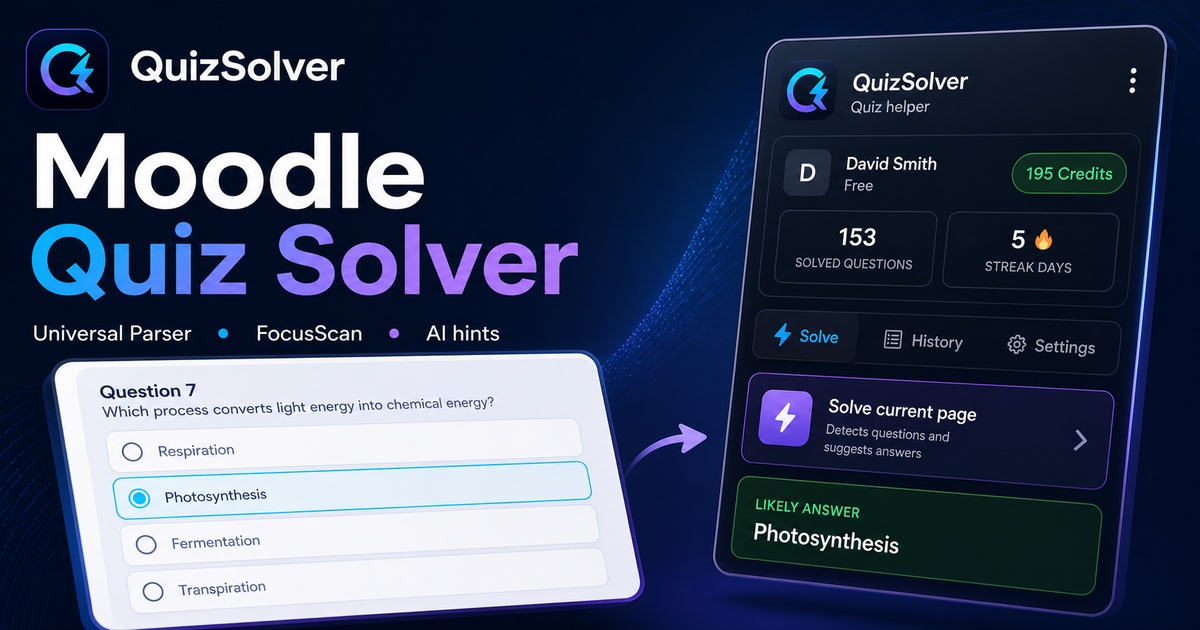
Moodle workflow

How QuizSolver handles Moodle quizzes without mixing questions

Moodle looks simple until a course combines one-page attempts, multi-page attempts, shuffled answers, review restrictions, formulas, images and cloze-style content in one activity. A reliable solver needs to understand the current question block, not scrape every word on the page.

QuizSolver focuses on the active question and the nearest matching answers. That helps prevent navigation labels, review text or feedback from another question from leaking into the AI prompt.

One-page attempts vs multi-page attempts

Some Moodle courses show the whole quiz on one page. Others split the attempt into pages or show only one question at a time. These layouts require different parsing behavior because the solver has to keep each prompt paired with its own controls.

For long one-page attempts, the safest workflow is to solve the visible question block and verify that the collected choices belong to that same block. For multi-page attempts, wait until the next question has fully loaded before triggering the extension again.

  • one-page attempts
  • multi-page attempts
  • shuffled answers
  • review pages and instructor feedback

Shuffled choices and repeated attempts

Moodle often shuffles answer order between attempts. That means an old "option B" is not a stable answer. The meaningful unit is the visible text of the choice, and QuizSolver is designed to reason over that text instead of relying only on position.

This also matters for cached answers. A saved result should match the normalized question and the actual option text on screen before it is reused.

Use review screens as study material

Moodle review screens are valuable even when they do not show the full solution. Saving the question, AI explanation and your own note creates a memory of what was hard, what concept was involved and what to revisit.

Before the next attempt, a student can filter saved questions, mark weak topics and build a short practice quiz from previous Moodle prompts.

Visual workflow

See the Moodle solving flow

A platform page should show the real workflow, not only promise an answer. This preview connects the three parts that matter most: the universal visible-page parser, FocusScan for difficult layouts, and saved explanations in study history.

QuizSolver workflow preview for Moodle: universal parser, FocusScan and saved explanations

Guía paso a paso

  1. 1Instala QuizSolver desde Chrome Web Store, fija el icono QS e inicia sesión con la misma cuenta del sitio web.
  2. 2Abre tu quiz de Moodle y espera a que carguen la pregunta y las respuestas visibles.
  3. 3Haz clic en el icono de QuizSolver y elige Resolver página actual. Si el diseño es raro, usa FocusScan y marca el área de la pregunta.
  4. 4Revisa la respuesta sugerida y la explicación antes de enviar. Usa Hint mode si prefieres una pista discreta.
  5. 5Guarda preguntas útiles en Historial y quiz, añade una nota y practica después con ese conjunto.

Funciones de este flujo

  • Detecta preguntas visibles, opciones, campos de texto, checkboxes y desplegables.
  • FocusScan ayuda con imágenes, diseños especiales y contenido que no aparece como texto normal.
  • Hint mode muestra una pista sin hacer el clic final.
  • Historial, notas y quizzes de práctica convierten respuestas en material de estudio.

Estudia mejor con Moodle

QuizSolver te ayuda a entender preguntas de Moodle, guardar notas y repasarlas más tarde eficientemente.

FAQ

Preguntas sobre este flujo

¿Cómo uso QuizSolver en Moodle?+

Abre el quiz de Moodle, pulsa el icono QS y elige Resolver página actual.

¿Qué hago si no detecta la pregunta?+

Usa FocusScan y dibuja un cuadro alrededor de la pregunta y las opciones.

¿Puedo repasar preguntas después?+

Sí, guárdalas en Historial y quiz y crea una práctica desde tu historial.

¿Qué tipos de preguntas de Moodle admite QuizSolver?+

QuizSolver detecta respuestas de opción única, opción múltiple, campos de texto, desplegables, diseños de emparejamiento, imágenes y contenido visible de la página. Para componentes inusuales, FocusScan lee la zona seleccionada de la pantalla.

¿QuizSolver envía mi quiz de Moodle automáticamente?+

No. La extensión muestra una sugerencia de respuesta y una explicación; el clic final o el envío quedan bajo tu control. Hint mode puede mostrar solo una pista visual discreta.

¿QuizSolver puede resolver preguntas con imágenes en Moodle?+

Sí. FocusScan permite seleccionar una región de la pantalla, así que funciona con imágenes, fragmentos PDF, canvas y diseños que no aparecen como texto normal de la página.

¿Listo para instalar?

Añade QuizSolver a Chrome y empieza con tu primer quiz.

La extensión, el historial, las notas y la práctica funcionan en una sola cuenta.