Kahoot Flujo

Kahoot Quiz Solver — Respuestas IA al Instante

Obtén sugerencias IA instantáneas y explicaciones detalladas para cada pregunta de quiz en Kahoot.

10+ plataformas
Respuestas IA en segundos
Instalación gratis

Question detection

How QuizSolver works on Kahoot

Kahoot is different because some games show the question on the player screen while others show only colored answer tiles. QuizSolver supports both visible-question mode and Quiz ID answer-bank mode for hidden-question games.

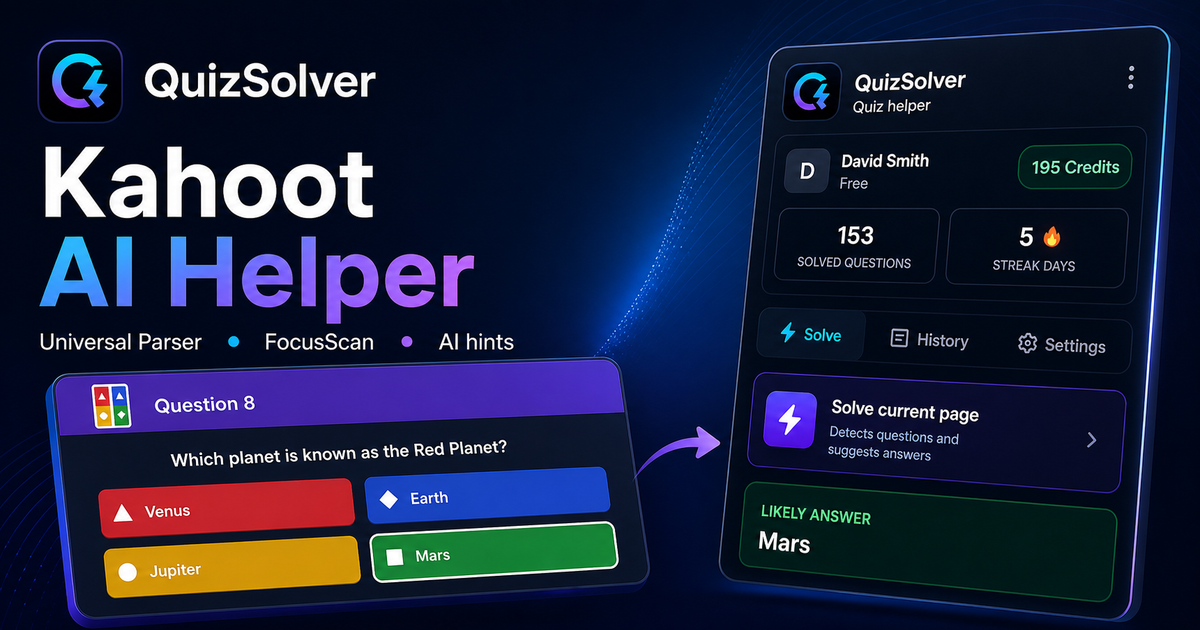
Under the hood, QuizSolver uses a universal parser: it compares the question text with nearby answer choices, form controls, images and the visible page layout. Tuned workflows improve reliability on popular platforms, and if standard detection does not return a meaningful question, FocusScan lets you select the exact screen region.

Every saved question can go to history with the answer, explanation and your own note. That means the platform workflow does not stop at a one-time hint: solved tasks become a private review library and practice quiz source.
Practical workflow

How to use QuizSolver reliably on Kahoot

A useful Kahoot solver page should explain the real workflow, not only repeat that AI answers are available. QuizSolver first reads visible question structure, nearby choices, field types and page context before it asks AI for a suggestion.

This workflow is designed for real quiz pages: radio answers, checkboxes, text inputs, image prompts, long instructions and custom layouts that can change between schools, courses and teachers.

Start with the visible question

Wait until the question and answer choices have fully loaded. On platforms that render quiz cards in stages, clicking too early can capture a heading, question number or navigation text instead of the actual prompt.

Check the answer format

Single-choice, multiple-answer, dropdown and short-answer questions need different AI instructions. QuizSolver tries to detect the active control type so the suggested answer matches what the page can actually accept.

Save hard questions for review

The biggest study value appears after the first answer. Saved questions, explanations and notes create a private review library that makes weak topics easier to find before the next attempt.

Visual workflow

See the Kahoot solving flow

A platform page should show the real workflow, not only promise an answer. This preview connects the three parts that matter most: the universal visible-page parser, FocusScan for difficult layouts, and saved explanations in study history.

QuizSolver workflow preview for Kahoot: universal parser, FocusScan and saved explanations

Guía paso a paso

  1. 1Abre kahoot.it/instructions, el lobby o la pantalla de respuestas y pulsa QS.
  2. 2Elige Resolver todo el quiz si ves preguntas y respuestas.
  3. 3Si el host las oculta, copia el Quiz ID de la URL después de quizId=.
  4. 4Busca la pregunta en el banco de respuestas. El modo Quiz ID no usa créditos de IA.
  5. 5Mantén el panel abierto y detén el modo auto cuando quieras tomar control.

Funciones de este flujo

  • Modo automático o banco de respuestas por Quiz ID.
  • Quiz ID no consume créditos de IA.
  • Panel buscable para escritorio y móvil.
  • Estado claro: esperando, resolviendo o detenido.

QuizSolver te ayuda a entender preguntas de Kahoot, guardar notas y repasarlas más tarde eficientemente.

Estudia mejor con Kahoot

QuizSolver te ayuda a entender preguntas de Kahoot, guardar notas y repasarlas más tarde eficientemente.

FAQ

Preguntas sobre este flujo

¿Quiz ID es lo mismo que el PIN de Kahoot?+

No. El PIN une al juego en vivo; el Quiz ID identifica el quiz.

¿Por qué no empieza el modo automático?+

Si el host oculta preguntas, usa el modo Quiz ID.

¿Quiz ID usa créditos?+

No, muestra el banco de respuestas sin consultar a la IA.

¿Qué tipos de preguntas de Kahoot admite QuizSolver?+

QuizSolver detecta respuestas de opción única, opción múltiple, campos de texto, desplegables, diseños de emparejamiento, imágenes y contenido visible de la página. Para componentes inusuales, FocusScan lee la zona seleccionada de la pantalla.

¿QuizSolver envía mi quiz de Kahoot automáticamente?+

No. La extensión muestra una sugerencia de respuesta y una explicación; el clic final o el envío quedan bajo tu control. Hint mode puede mostrar solo una pista visual discreta.

¿Funciona Quiz ID cuando la pregunta está oculta?+

Sí. Cuando el host oculta la pregunta, el modo Quiz ID permite buscar en el banco de respuestas sin gastar créditos de IA.

¿Listo para instalar?

Añade QuizSolver a Chrome y empieza con tu primer quiz.

La extensión, el historial, las notas y la práctica funcionan en una sola cuenta.