Testportal Workflow

Testportal Quiz Solver — Réponses IA Instantanées

Obtenez des suggestions IA instantanées et des explications détaillées pour chaque question de quiz Testportal.

10+ plateformes
Réponses IA en quelques secondes
Installation gratuite

Question detection

How QuizSolver works on Testportal

Testportal often combines timers, one-question screens, radio answers, checkboxes and images inside a focused test interface. QuizSolver keeps the work in the browser side panel so the question can be reviewed without leaving the test tab.

Under the hood, QuizSolver uses a universal parser: it compares the question text with nearby answer choices, form controls, images and the visible page layout. Tuned workflows improve reliability on popular platforms, and if standard detection does not return a meaningful question, FocusScan lets you select the exact screen region.

Every saved question can go to history with the answer, explanation and your own note. That means the platform workflow does not stop at a one-time hint: solved tasks become a private review library and practice quiz source.
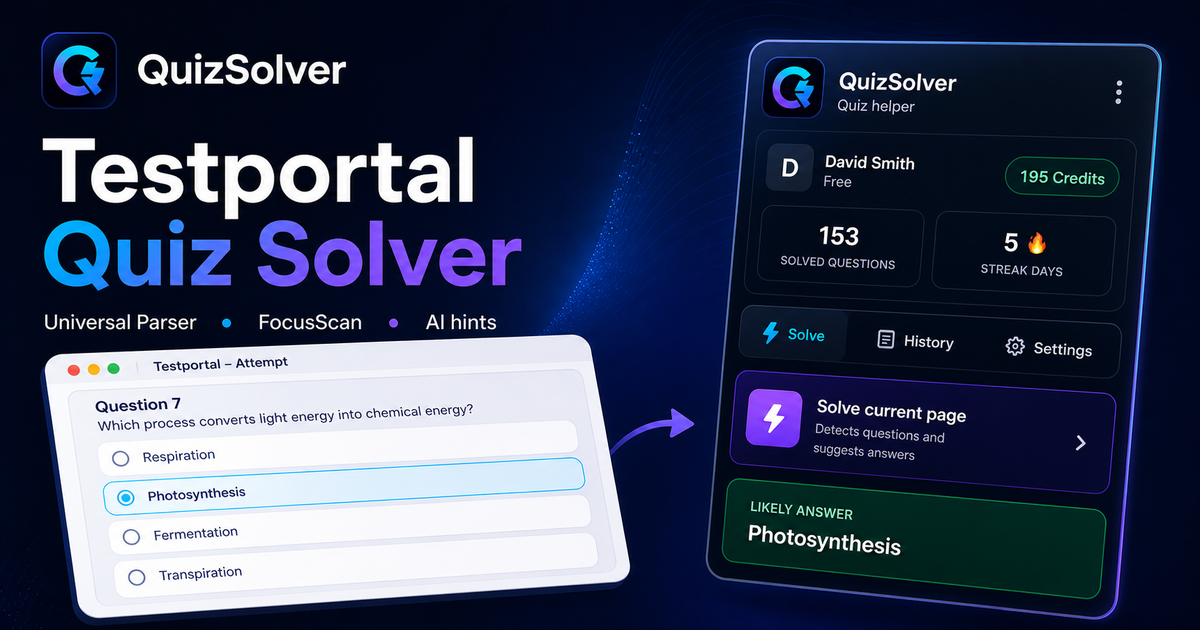
Testportal workflow

How QuizSolver handles Testportal quizzes in practice

Testportal is one of the platforms where a generic AI copy-paste workflow breaks down quickly. A quiz can show one question per screen, a running timer, shuffled answers, focus-loss warnings and image-based prompts in the same attempt.

QuizSolver treats Testportal as a structured workflow. It looks for the active prompt, pairs it with the currently visible answer choices and detects whether the question expects one answer or multiple answers before sending a compact request to AI.

Timed one-question screens

Many Testportal attempts show only one question at a time. That can make detection cleaner, but only after the page has fully rendered. If the extension is triggered while the next card is still loading, the visible text may be only a question number, a spinner or navigation labels.

The most reliable flow is to wait until the full question and answer set are visible, run Solve current page, review the suggestion and continue. If the same normalized question appears again, QuizSolver can reuse saved context instead of treating it as a brand-new prompt.

  • single-question screens
  • radio and checkbox answers
  • shuffled answer order
  • embedded images and diagrams

When FocusScan is better than page parsing

Some Testportal questions are not exposed as clean page text. Teachers may use screenshots, PDF fragments, diagrams or locked content. In those cases FocusScan gives AI the missing visual context without relying on brittle HTML selectors.

The selection should be tight: include the prompt and answer choices, but leave out the timer, navigation buttons, side menus and browser chrome. A smaller, cleaner capture produces better OCR and reduces the chance of answering the wrong text.

  • select the prompt and answers only
  • exclude timers and navigation
  • use it for images or locked text
  • save the explanation afterward

Turn the attempt into study material

The strongest Testportal workflow starts after the first answer. Saving the question, answer and explanation turns a temporary test screen into a private review item. Notes are useful for marking why the question was hard: concept gap, vocabulary, formula, definition or careless reading.

Later, those saved questions can become a practice set. That gives the page long-term learning value instead of reducing it to a one-time answer lookup.

Visual workflow

See the Testportal solving flow

A platform page should show the real workflow, not only promise an answer. This preview connects the three parts that matter most: the universal visible-page parser, FocusScan for difficult layouts, and saved explanations in study history.

QuizSolver workflow preview for Testportal: universal parser, FocusScan and saved explanations

Guide étape par étape

  1. 1Installez QuizSolver depuis le Chrome Web Store, épinglez l’icône QS et connectez-vous avec le même compte.
  2. 2Ouvrez votre quiz Testportal et attendez que la question et les réponses visibles soient chargées.
  3. 3Cliquez sur l’icône QuizSolver et choisissez Résoudre la page. Si la mise en page est spéciale, utilisez FocusScan.
  4. 4Vérifiez la réponse proposée et l’explication avant d’envoyer. Activez Hint mode pour un indice discret.
  5. 5Enregistrez les questions utiles dans Historique et quiz, ajoutez une note et révisez-les plus tard.

Fonctions de ce workflow

  • Détecte questions visibles, options, champs texte, cases et listes déroulantes.
  • FocusScan aide avec les images, les mises en page inhabituelles et le contenu qui n’apparaît pas comme du texte normal.
  • Hint mode affiche un indice sans cliquer à votre place.
  • Historique, notes et quiz d’entraînement transforment les réponses en révision.

Mieux étudier avec Testportal

QuizSolver vous aide à comprendre les questions sur Testportal, enregistrer des notes et les réviser efficacement plus tard.

FAQ

Questions sur ce workflow

Comment utiliser QuizSolver sur Testportal ?+

Ouvrez le quiz Testportal, cliquez sur l’icône QS et choisissez Résoudre la page.

Et si la question n’est pas détectée ?+

Utilisez FocusScan et encadrez la question avec les réponses.

Puis-je réviser plus tard ?+

Oui, enregistrez les questions dans Historique et quiz.

Quels types de questions Testportal QuizSolver prend-il en charge ?+

QuizSolver détecte les réponses à choix unique, choix multiple, champs texte, listes déroulantes, mises en correspondance, images et contenu visible de la page. Pour les composants inhabituels, FocusScan lit la zone sélectionnée à l’écran.

QuizSolver envoie-t-il automatiquement mon quiz Testportal ?+

Non. L’extension affiche une suggestion de réponse et une explication; le clic final ou l’envoi reste sous votre contrôle. Hint mode peut afficher seulement un indice discret.

QuizSolver peut-il résoudre les questions en image sur Testportal ?+

Oui. FocusScan permet de sélectionner une zone de l’écran, donc il fonctionne avec les images, fragments PDF, canvas et mises en page qui ne sont pas exposés comme texte normal.

Prêt à installer ?

Ajoutez QuizSolver à Chrome et commencez votre premier quiz.

Extension, historique, notes et entraînement fonctionnent avec un seul compte.