Canvas フロー

Canvas クイズ解答ツール — AI による即時解答

Canvas のあらゆる問題に対して、AI の解答提案と詳しい解説を即座に取得できます。

10以上のプラットフォーム
数秒で AI 解答を取得
無料インストール

Question detection

How QuizSolver works on Canvas

Canvas LMS can show quizzes through classic quizzes, New Quizzes and embedded LTI tools. QuizSolver reads the visible assessment area first, then FocusScan covers frames, images or custom layouts when the regular DOM is not enough.

Under the hood, QuizSolver uses a universal parser: it compares the question text with nearby answer choices, form controls, images and the visible page layout. Tuned workflows improve reliability on popular platforms, and if standard detection does not return a meaningful question, FocusScan lets you select the exact screen region.

Every saved question can go to history with the answer, explanation and your own note. That means the platform workflow does not stop at a one-time hint: solved tasks become a private review library and practice quiz source.
Canvas workflow

How QuizSolver reads Canvas Classic Quizzes and New Quizzes

Canvas LMS can deliver assessments through Classic Quizzes, New Quizzes and external LTI tools. Classic Quizzes often expose predictable question blocks, while New Quizzes can behave more like a dynamic app with cards, media and custom controls.

QuizSolver starts with the visible assessment area. If Canvas or an embedded tool renders content in a way that is hard to parse as normal text, FocusScan can capture the exact question region instead.

Classic Quizzes vs New Quizzes

Classic Quizzes usually provide a clearer relationship between the prompt and answer choices. New Quizzes may split status text, answer controls and media across multiple components, which makes raw page text less reliable.

The important rule is proximity: pair the closest question text with the closest answer controls, then ignore course navigation, assignment titles and unrelated instructions.

  • Classic Quizzes
  • New Quizzes
  • image prompts
  • embedded LTI layouts

Image, formula and file-based questions

Canvas courses often include diagrams, screenshots, formulas and file previews. If the meaningful part of the prompt is an image, a normal parser may see only an empty container or an alt label that is not enough for a good answer.

FocusScan is more predictable in that case. Select the prompt, choices and relevant visual. Avoid full-page captures that include the course sidebar, comments, due dates or navigation.

Keep explanations before feedback disappears

Canvas feedback is not always available forever. An instructor can limit review visibility, hide correct answers or close the attempt after a deadline. Saving the AI explanation gives students a private study trail independent of those settings.

Before a final exam or retake, saved Canvas questions can be filtered into a focused practice set instead of being lost inside the LMS.

Visual workflow

See the Canvas solving flow

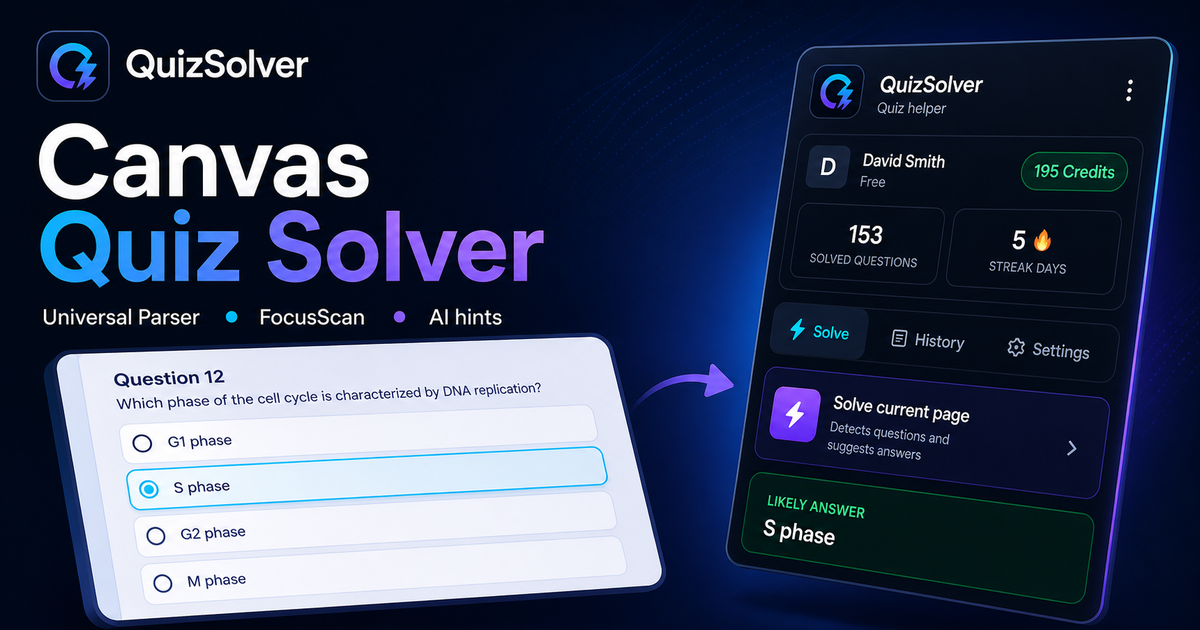
A platform page should show the real workflow, not only promise an answer. This preview connects the three parts that matter most: the universal visible-page parser, FocusScan for difficult layouts, and saved explanations in study history.

QuizSolver workflow preview for Canvas: universal parser, FocusScan and saved explanations

利用の流れ

  1. 1Canvas のクイズページを開き、問題文と選択肢が完全に表示されるのを待ちます。
  2. 2QuizSolver アイコンをクリックし、「現在のページを解答」を選択します。特殊レイアウトには FocusScan を使用します。
  3. 3提案された解答と解説を確認します。自動クリックを避けたい場合はヒントモードを利用してください。

このワークフローの機能

  • ✦ 解答する前に、問題と選択肢が完全に読み込まれていることを確認してください。
  • ✦ 問題が画像、キャンバス、PDF などの特殊な形式の場合は FocusScan を使用してください。
  • ✦ 自動クリックを行わずに目立たないヒントを得たい場合はヒントモードを有効にしてください。
  • ✦ 難しい問題をノート付きで保存し、テスト直前の復習教材として活用しましょう。

Canvas で効率的に学習

QuizSolver は Canvas の問題を深く理解し、ノートを保存して試験前に効率よく復習するのに役立ちます。

プラットフォーム

その他の QuizSolver ガイド

利用するプラットフォームを選択して、クイズシステムに特化した手順を確認しましょう。

FAQ

このワークフローに関するよくある質問

QuizSolver は Canvas でどのように機能しますか?+

QuizSolver は Canvas の問題と選択肢を読み取り、AI を通じて瞬時に正解の提案と解説を表示します。

問題が自動的に検出されない場合はどうすればよいですか?+

FocusScan を使用し、問題エリアをマウスでドラッグして選択すればすぐに AI に送信できます。

後から問題を復習できますか?+

はい、解いた問題を履歴に保存し、ノートの追加や復習テストの作成が可能です。

QuizSolver は Canvas でどのような問題形式に対応していますか?+

QuizSolver は選択式、単一選択、自由記述、ドロップダウン、組み合わせ、および FocusScan による画像問題を認識します。

QuizSolver は Canvas で自動的に回答を送信しますか?+

いいえ。拡張機能は正解の提案と解説を表示しますが、最終的な選択と送信の判断は常にユーザーに委ねられます。

QuizSolver は Canvas の画像付き問題を解答できますか?+

はい。FocusScan により画面上の任意のエリアを選択して、画像、図表、数式を正確に読み取ることができます。

今すぐ始める

QuizSolver を Chrome に追加

無料の10クレジットからスタート。インストールは数秒で完了します。