Moodle フロー

Moodle クイズ解答ツール — AI による即時解答

Moodle のあらゆる問題に対して、AI の解答提案と詳しい解説を即座に取得できます。

10以上のプラットフォーム
数秒で AI 解答を取得
無料インストール

Question detection

How QuizSolver works on Moodle

Moodle quizzes can mix classic multiple choice, multi-answer questions, cloze-style content, math notation, attachments and long course-specific wording. QuizSolver focuses on the active question block and keeps the answer context together.

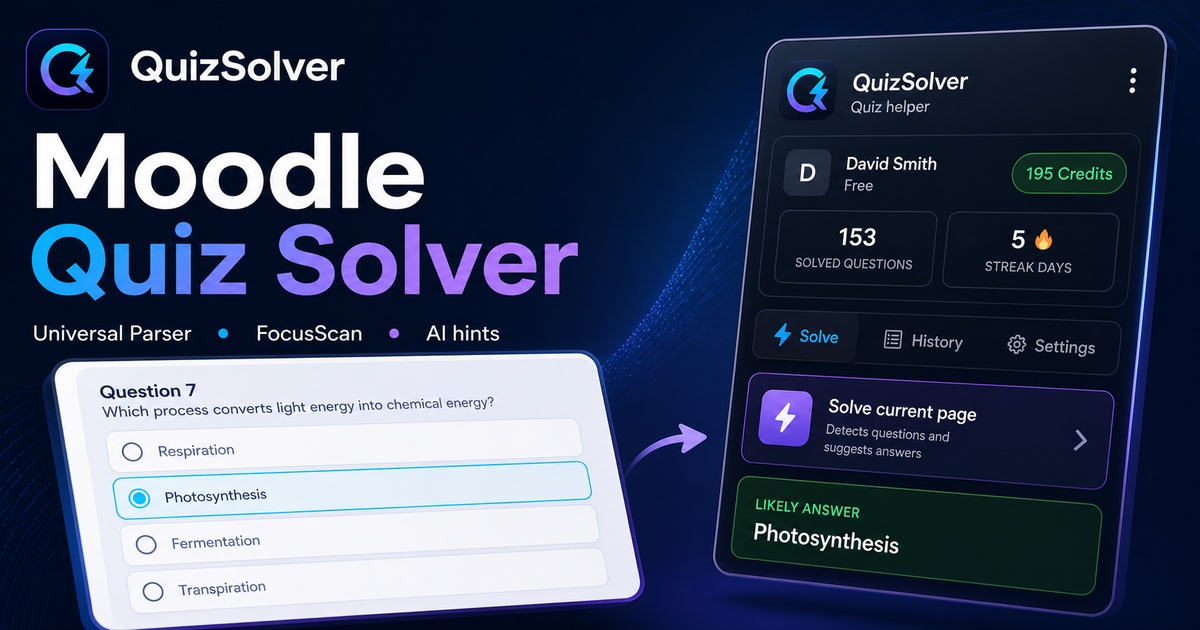
Under the hood, QuizSolver uses a universal parser: it compares the question text with nearby answer choices, form controls, images and the visible page layout. Tuned workflows improve reliability on popular platforms, and if standard detection does not return a meaningful question, FocusScan lets you select the exact screen region.

Every saved question can go to history with the answer, explanation and your own note. That means the platform workflow does not stop at a one-time hint: solved tasks become a private review library and practice quiz source.
Moodle workflow

How QuizSolver handles Moodle quizzes without mixing questions

Moodle looks simple until a course combines one-page attempts, multi-page attempts, shuffled answers, review restrictions, formulas, images and cloze-style content in one activity. A reliable solver needs to understand the current question block, not scrape every word on the page.

QuizSolver focuses on the active question and the nearest matching answers. That helps prevent navigation labels, review text or feedback from another question from leaking into the AI prompt.

One-page attempts vs multi-page attempts

Some Moodle courses show the whole quiz on one page. Others split the attempt into pages or show only one question at a time. These layouts require different parsing behavior because the solver has to keep each prompt paired with its own controls.

For long one-page attempts, the safest workflow is to solve the visible question block and verify that the collected choices belong to that same block. For multi-page attempts, wait until the next question has fully loaded before triggering the extension again.

  • one-page attempts
  • multi-page attempts
  • shuffled answers
  • review pages and instructor feedback

Shuffled choices and repeated attempts

Moodle often shuffles answer order between attempts. That means an old "option B" is not a stable answer. The meaningful unit is the visible text of the choice, and QuizSolver is designed to reason over that text instead of relying only on position.

This also matters for cached answers. A saved result should match the normalized question and the actual option text on screen before it is reused.

Use review screens as study material

Moodle review screens are valuable even when they do not show the full solution. Saving the question, AI explanation and your own note creates a memory of what was hard, what concept was involved and what to revisit.

Before the next attempt, a student can filter saved questions, mark weak topics and build a short practice quiz from previous Moodle prompts.

Visual workflow

See the Moodle solving flow

A platform page should show the real workflow, not only promise an answer. This preview connects the three parts that matter most: the universal visible-page parser, FocusScan for difficult layouts, and saved explanations in study history.

QuizSolver workflow preview for Moodle: universal parser, FocusScan and saved explanations

利用の流れ

  1. 1Moodle のクイズページを開き、問題文と選択肢が完全に表示されるのを待ちます。
  2. 2QuizSolver アイコンをクリックし、「現在のページを解答」を選択します。特殊レイアウトには FocusScan を使用します。
  3. 3提案された解答と解説を確認します。自動クリックを避けたい場合はヒントモードを利用してください。

このワークフローの機能

  • ✦ 解答する前に、問題と選択肢が完全に読み込まれていることを確認してください。
  • ✦ 問題が画像、キャンバス、PDF などの特殊な形式の場合は FocusScan を使用してください。
  • ✦ 自動クリックを行わずに目立たないヒントを得たい場合はヒントモードを有効にしてください。
  • ✦ 難しい問題をノート付きで保存し、テスト直前の復習教材として活用しましょう。

Moodle で効率的に学習

QuizSolver は Moodle の問題を深く理解し、ノートを保存して試験前に効率よく復習するのに役立ちます。

プラットフォーム

その他の QuizSolver ガイド

利用するプラットフォームを選択して、クイズシステムに特化した手順を確認しましょう。

FAQ

このワークフローに関するよくある質問

QuizSolver は Moodle でどのように機能しますか?+

QuizSolver は Moodle の問題と選択肢を読み取り、AI を通じて瞬時に正解の提案と解説を表示します。

問題が自動的に検出されない場合はどうすればよいですか?+

FocusScan を使用し、問題エリアをマウスでドラッグして選択すればすぐに AI に送信できます。

後から問題を復習できますか?+

はい、解いた問題を履歴に保存し、ノートの追加や復習テストの作成が可能です。

QuizSolver は Moodle でどのような問題形式に対応していますか?+

QuizSolver は選択式、単一選択、自由記述、ドロップダウン、組み合わせ、および FocusScan による画像問題を認識します。

QuizSolver は Moodle で自動的に回答を送信しますか?+

いいえ。拡張機能は正解の提案と解説を表示しますが、最終的な選択と送信の判断は常にユーザーに委ねられます。

QuizSolver は Moodle の画像付き問題を解答できますか?+

はい。FocusScan により画面上の任意のエリアを選択して、画像、図表、数式を正確に読み取ることができます。

今すぐ始める

QuizSolver を Chrome に追加

無料の10クレジットからスタート。インストールは数秒で完了します。