Canvas Workflow

Canvas Quiz Solver — KI-Antworten & Erklärungen

Erhalte sofortige KI-Antwortvorschläge und detaillierte Erklärungen für jede Canvas-Quiz-Frage.

10+ Plattformen
KI-Antworten in Sekunden
Kostenlos installieren

Question detection

How QuizSolver works on Canvas

Canvas LMS can show quizzes through classic quizzes, New Quizzes and embedded LTI tools. QuizSolver reads the visible assessment area first, then FocusScan covers frames, images or custom layouts when the regular DOM is not enough.

Under the hood, QuizSolver uses a universal parser: it compares the question text with nearby answer choices, form controls, images and the visible page layout. Tuned workflows improve reliability on popular platforms, and if standard detection does not return a meaningful question, FocusScan lets you select the exact screen region.

Every saved question can go to history with the answer, explanation and your own note. That means the platform workflow does not stop at a one-time hint: solved tasks become a private review library and practice quiz source.
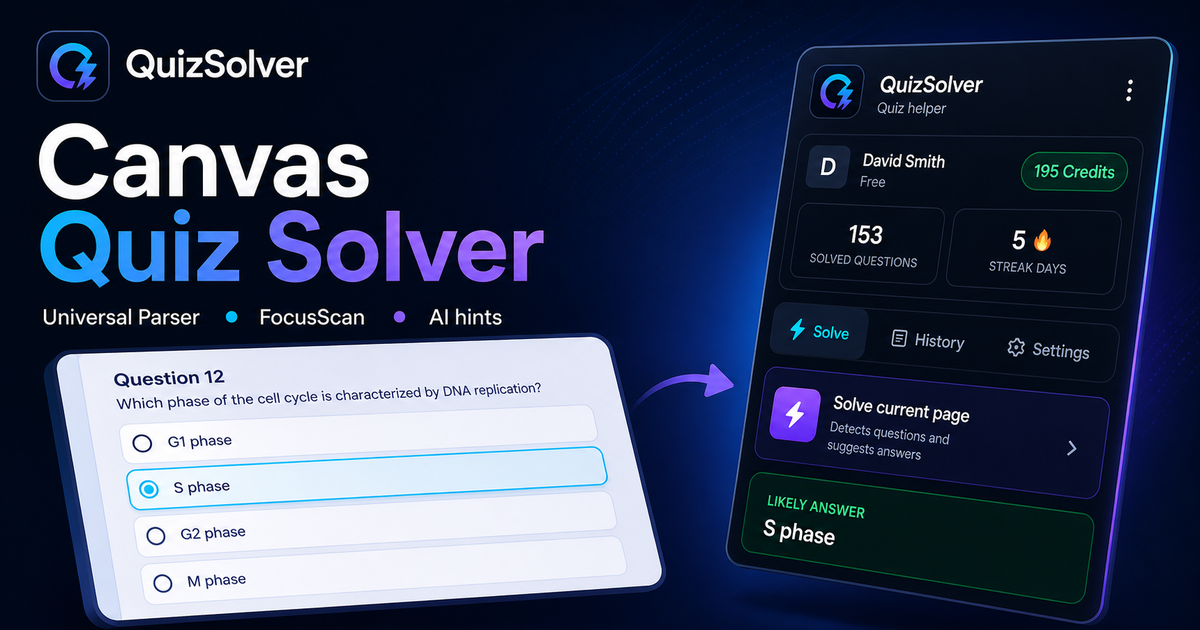
Canvas workflow

How QuizSolver reads Canvas Classic Quizzes and New Quizzes

Canvas LMS can deliver assessments through Classic Quizzes, New Quizzes and external LTI tools. Classic Quizzes often expose predictable question blocks, while New Quizzes can behave more like a dynamic app with cards, media and custom controls.

QuizSolver starts with the visible assessment area. If Canvas or an embedded tool renders content in a way that is hard to parse as normal text, FocusScan can capture the exact question region instead.

Classic Quizzes vs New Quizzes

Classic Quizzes usually provide a clearer relationship between the prompt and answer choices. New Quizzes may split status text, answer controls and media across multiple components, which makes raw page text less reliable.

The important rule is proximity: pair the closest question text with the closest answer controls, then ignore course navigation, assignment titles and unrelated instructions.

  • Classic Quizzes
  • New Quizzes
  • image prompts
  • embedded LTI layouts

Image, formula and file-based questions

Canvas courses often include diagrams, screenshots, formulas and file previews. If the meaningful part of the prompt is an image, a normal parser may see only an empty container or an alt label that is not enough for a good answer.

FocusScan is more predictable in that case. Select the prompt, choices and relevant visual. Avoid full-page captures that include the course sidebar, comments, due dates or navigation.

Keep explanations before feedback disappears

Canvas feedback is not always available forever. An instructor can limit review visibility, hide correct answers or close the attempt after a deadline. Saving the AI explanation gives students a private study trail independent of those settings.

Before a final exam or retake, saved Canvas questions can be filtered into a focused practice set instead of being lost inside the LMS.

Visual workflow

See the Canvas solving flow

A platform page should show the real workflow, not only promise an answer. This preview connects the three parts that matter most: the universal visible-page parser, FocusScan for difficult layouts, and saved explanations in study history.

QuizSolver workflow preview for Canvas: universal parser, FocusScan and saved explanations

Schritt-für-Schritt-Anleitung

  1. 1Installiere QuizSolver aus dem Chrome Web Store, pinne das QS-Symbol und melde dich mit demselben Konto wie auf der Website an.
  2. 2Öffne dein Canvas-Quiz und warte, bis die aktuelle Frage und alle sichtbaren Antwortoptionen geladen sind.
  3. 3Klicke auf das QuizSolver-Symbol und wähle Aktuelle Seite lösen. Bei ungewöhnlichen Layouts nutze FocusScan und markiere den Fragebereich.
  4. 4Prüfe die vorgeschlagene Antwort und Erklärung, bevor du absendest. Nutze Hint mode, wenn du nur einen dezenten Hinweis möchtest.
  5. 5Speichere wichtige Fragen in Historie & Quiz, füge eine Notiz hinzu und starte später ein Übungsquiz.

Funktionen in diesem Workflow

  • Erkennt sichtbare Fragen, Optionen, Texteingaben, Checkboxen und Dropdowns.
  • FocusScan hilft bei Bildern, ungewöhnlichen Layouts und Inhalten, die nicht als normaler Text lesbar sind.
  • Hint mode zeigt einen dezenten Hinweis, ohne die Kontrolle zu übernehmen.
  • Historie, Notizen und Übungsquizze machen aus Antworten Lernmaterial.

Besser lernen mit Canvas

QuizSolver hilft dir, Fragen auf Canvas schneller zu verstehen, Notizen zu speichern und später gezielt zu wiederholen.

FAQ

Fragen zu diesem Workflow

Wie starte ich QuizSolver auf Canvas?+

Öffne das Canvas-Quiz, klicke auf das QS-Symbol und wähle Aktuelle Seite lösen.

Was mache ich, wenn die Frage nicht erkannt wird?+

Nutze FocusScan und ziehe einen Rahmen um Frage und Antworten.

Kann ich Fragen später wiederholen?+

Ja, speichere sie in Historie & Quiz und starte daraus ein Übungsquiz.

Welche Fragetypen auf Canvas unterstützt QuizSolver?+

QuizSolver erkennt Single Choice, Multiple Choice, Textfelder, Dropdowns, Matching-Layouts, Bilder und sichtbare Seiteninhalte. Bei ungewöhnlichen Komponenten liest FocusScan den markierten Bildschirmbereich.

Sendet QuizSolver mein Canvas-Quiz automatisch ab?+

Nein. Die Erweiterung zeigt eine Antwortempfehlung und Erklärung; der finale Klick oder das Absenden bleibt unter deiner Kontrolle. Hint mode kann nur einen dezenten Hinweis anzeigen.

Kann QuizSolver Bildfragen auf Canvas lösen?+

Ja. Mit FocusScan markierst du einen Bildschirmbereich, daher funktioniert es auch bei Bildern, PDF-Ausschnitten, Canvas-Inhalten und Layouts, die nicht als normaler Seitentext verfügbar sind.

Bereit zur Installation?

Füge QuizSolver zu Chrome hinzu und starte mit deinem ersten Quiz.

Erweiterung, Fragenhistorie, Notizen und Übungen laufen über ein Konto.