Moodle Workflow

Moodle Quiz Solver — KI-Antworten & Erklärungen

Erhalte sofortige KI-Antwortvorschläge und detaillierte Erklärungen für jede Moodle-Quiz-Frage.

10+ Plattformen
KI-Antworten in Sekunden
Kostenlos installieren

Question detection

How QuizSolver works on Moodle

Moodle quizzes can mix classic multiple choice, multi-answer questions, cloze-style content, math notation, attachments and long course-specific wording. QuizSolver focuses on the active question block and keeps the answer context together.

Under the hood, QuizSolver uses a universal parser: it compares the question text with nearby answer choices, form controls, images and the visible page layout. Tuned workflows improve reliability on popular platforms, and if standard detection does not return a meaningful question, FocusScan lets you select the exact screen region.

Every saved question can go to history with the answer, explanation and your own note. That means the platform workflow does not stop at a one-time hint: solved tasks become a private review library and practice quiz source.
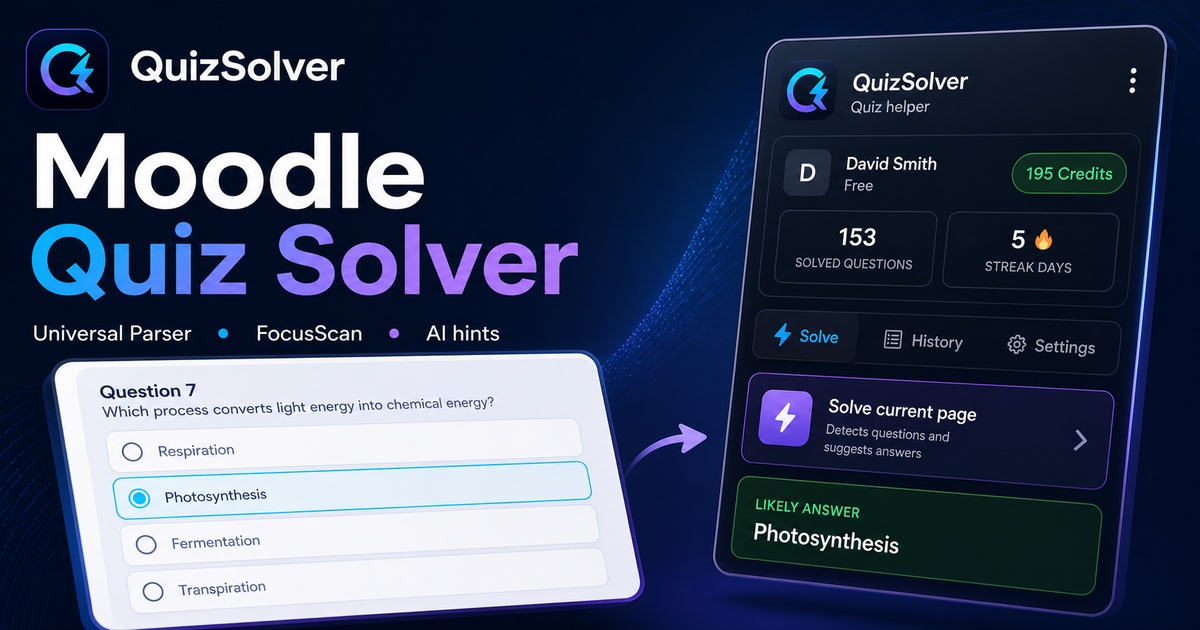
Moodle workflow

How QuizSolver handles Moodle quizzes without mixing questions

Moodle looks simple until a course combines one-page attempts, multi-page attempts, shuffled answers, review restrictions, formulas, images and cloze-style content in one activity. A reliable solver needs to understand the current question block, not scrape every word on the page.

QuizSolver focuses on the active question and the nearest matching answers. That helps prevent navigation labels, review text or feedback from another question from leaking into the AI prompt.

One-page attempts vs multi-page attempts

Some Moodle courses show the whole quiz on one page. Others split the attempt into pages or show only one question at a time. These layouts require different parsing behavior because the solver has to keep each prompt paired with its own controls.

For long one-page attempts, the safest workflow is to solve the visible question block and verify that the collected choices belong to that same block. For multi-page attempts, wait until the next question has fully loaded before triggering the extension again.

  • one-page attempts
  • multi-page attempts
  • shuffled answers
  • review pages and instructor feedback

Shuffled choices and repeated attempts

Moodle often shuffles answer order between attempts. That means an old "option B" is not a stable answer. The meaningful unit is the visible text of the choice, and QuizSolver is designed to reason over that text instead of relying only on position.

This also matters for cached answers. A saved result should match the normalized question and the actual option text on screen before it is reused.

Use review screens as study material

Moodle review screens are valuable even when they do not show the full solution. Saving the question, AI explanation and your own note creates a memory of what was hard, what concept was involved and what to revisit.

Before the next attempt, a student can filter saved questions, mark weak topics and build a short practice quiz from previous Moodle prompts.

Visual workflow

See the Moodle solving flow

A platform page should show the real workflow, not only promise an answer. This preview connects the three parts that matter most: the universal visible-page parser, FocusScan for difficult layouts, and saved explanations in study history.

QuizSolver workflow preview for Moodle: universal parser, FocusScan and saved explanations

Schritt-für-Schritt-Anleitung

  1. 1Installiere QuizSolver aus dem Chrome Web Store, pinne das QS-Symbol und melde dich mit demselben Konto wie auf der Website an.
  2. 2Öffne dein Moodle-Quiz und warte, bis die aktuelle Frage und alle sichtbaren Antwortoptionen geladen sind.
  3. 3Klicke auf das QuizSolver-Symbol und wähle Aktuelle Seite lösen. Bei ungewöhnlichen Layouts nutze FocusScan und markiere den Fragebereich.
  4. 4Prüfe die vorgeschlagene Antwort und Erklärung, bevor du absendest. Nutze Hint mode, wenn du nur einen dezenten Hinweis möchtest.
  5. 5Speichere wichtige Fragen in Historie & Quiz, füge eine Notiz hinzu und starte später ein Übungsquiz.

Funktionen in diesem Workflow

  • Erkennt sichtbare Fragen, Optionen, Texteingaben, Checkboxen und Dropdowns.
  • FocusScan hilft bei Bildern, ungewöhnlichen Layouts und Inhalten, die nicht als normaler Text lesbar sind.
  • Hint mode zeigt einen dezenten Hinweis, ohne die Kontrolle zu übernehmen.
  • Historie, Notizen und Übungsquizze machen aus Antworten Lernmaterial.

Besser lernen mit Moodle

QuizSolver hilft dir, Fragen auf Moodle schneller zu verstehen, Notizen zu speichern und später gezielt zu wiederholen.

FAQ

Fragen zu diesem Workflow

Wie starte ich QuizSolver auf Moodle?+

Öffne das Moodle-Quiz, klicke auf das QS-Symbol und wähle Aktuelle Seite lösen.

Was mache ich, wenn die Frage nicht erkannt wird?+

Nutze FocusScan und ziehe einen Rahmen um Frage und Antworten.

Kann ich Fragen später wiederholen?+

Ja, speichere sie in Historie & Quiz und starte daraus ein Übungsquiz.

Welche Fragetypen auf Moodle unterstützt QuizSolver?+

QuizSolver erkennt Single Choice, Multiple Choice, Textfelder, Dropdowns, Matching-Layouts, Bilder und sichtbare Seiteninhalte. Bei ungewöhnlichen Komponenten liest FocusScan den markierten Bildschirmbereich.

Sendet QuizSolver mein Moodle-Quiz automatisch ab?+

Nein. Die Erweiterung zeigt eine Antwortempfehlung und Erklärung; der finale Klick oder das Absenden bleibt unter deiner Kontrolle. Hint mode kann nur einen dezenten Hinweis anzeigen.

Kann QuizSolver Bildfragen auf Moodle lösen?+

Ja. Mit FocusScan markierst du einen Bildschirmbereich, daher funktioniert es auch bei Bildern, PDF-Ausschnitten, Canvas-Inhalten und Layouts, die nicht als normaler Seitentext verfügbar sind.

Bereit zur Installation?

Füge QuizSolver zu Chrome hinzu und starte mit deinem ersten Quiz.

Erweiterung, Fragenhistorie, Notizen und Übungen laufen über ein Konto.