Kahoot Workflow

Kahoot Quiz Solver — KI-Antworten & Erklärungen

Erhalte sofortige KI-Antwortvorschläge und detaillierte Erklärungen für jede Kahoot-Quiz-Frage.

10+ Plattformen
KI-Antworten in Sekunden
Kostenlos installieren

Question detection

How QuizSolver works on Kahoot

Kahoot is different because some games show the question on the player screen while others show only colored answer tiles. QuizSolver supports both visible-question mode and Quiz ID answer-bank mode for hidden-question games.

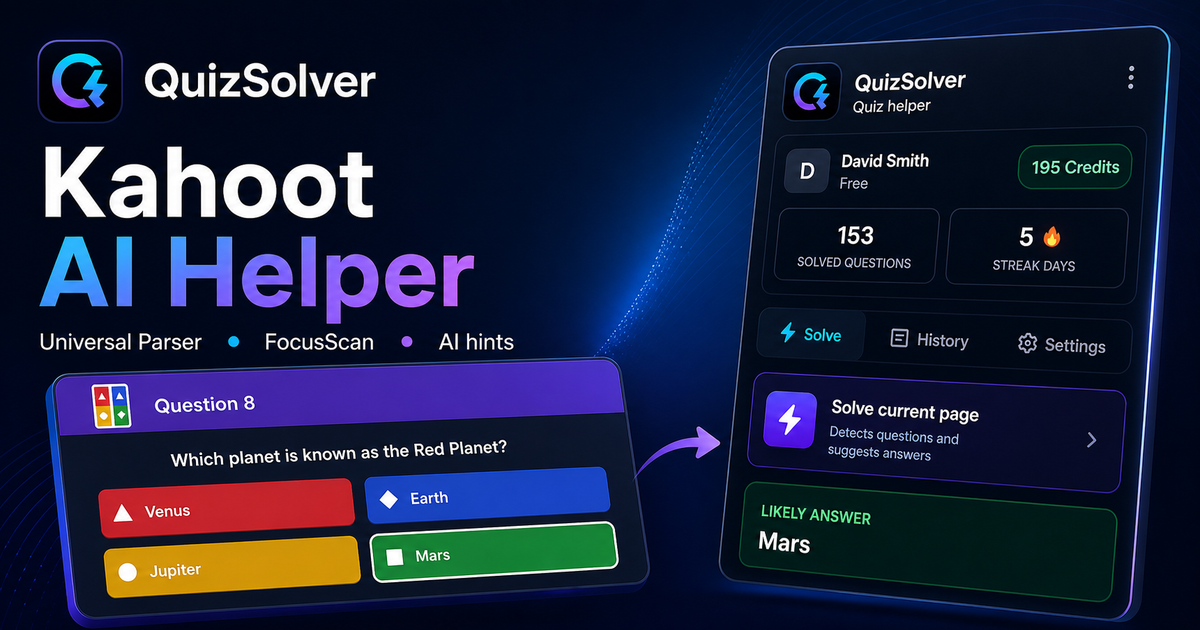
Under the hood, QuizSolver uses a universal parser: it compares the question text with nearby answer choices, form controls, images and the visible page layout. Tuned workflows improve reliability on popular platforms, and if standard detection does not return a meaningful question, FocusScan lets you select the exact screen region.

Every saved question can go to history with the answer, explanation and your own note. That means the platform workflow does not stop at a one-time hint: solved tasks become a private review library and practice quiz source.
Practical workflow

How to use QuizSolver reliably on Kahoot

A useful Kahoot solver page should explain the real workflow, not only repeat that AI answers are available. QuizSolver first reads visible question structure, nearby choices, field types and page context before it asks AI for a suggestion.

This workflow is designed for real quiz pages: radio answers, checkboxes, text inputs, image prompts, long instructions and custom layouts that can change between schools, courses and teachers.

Start with the visible question

Wait until the question and answer choices have fully loaded. On platforms that render quiz cards in stages, clicking too early can capture a heading, question number or navigation text instead of the actual prompt.

Check the answer format

Single-choice, multiple-answer, dropdown and short-answer questions need different AI instructions. QuizSolver tries to detect the active control type so the suggested answer matches what the page can actually accept.

Save hard questions for review

The biggest study value appears after the first answer. Saved questions, explanations and notes create a private review library that makes weak topics easier to find before the next attempt.

Visual workflow

See the Kahoot solving flow

A platform page should show the real workflow, not only promise an answer. This preview connects the three parts that matter most: the universal visible-page parser, FocusScan for difficult layouts, and saved explanations in study history.

QuizSolver workflow preview for Kahoot: universal parser, FocusScan and saved explanations

Schritt-für-Schritt-Anleitung

  1. 1Öffne kahoot.it/instructions, die Lobby oder den Live-Antwortbildschirm und klicke auf QS.
  2. 2Wähle Ganzes Quiz lösen, wenn Fragen und Antwortfelder sichtbar sind.
  3. 3Wenn der Host Fragen versteckt, kopiere die Quiz ID aus der URL nach quizId=.
  4. 4Suche die aktuelle Frage in der Antwortbank. Quiz-ID-Modus verbraucht keine AI-Credits.
  5. 5Lass das Panel offen und stoppe den Auto-Modus, wenn du selbst übernehmen willst.

Funktionen in diesem Workflow

  • Automatischer Modus oder Quiz-ID-Antwortbank.
  • Quiz-ID-Modus verbraucht keine AI-Credits.
  • Suchbares Panel für Desktop und Mobile.
  • Status zeigt Warten, Lösen oder Gestoppt.

QuizSolver hilft dir, Fragen auf Kahoot schneller zu verstehen, Notizen zu speichern und später gezielt zu wiederholen.

Besser lernen mit Kahoot

QuizSolver hilft dir, Fragen auf Kahoot schneller zu verstehen, Notizen zu speichern und später gezielt zu wiederholen.

FAQ

Fragen zu diesem Workflow

Ist Quiz ID dasselbe wie der Kahoot-PIN?+

Nein. Der PIN verbindet dich mit dem Live-Spiel, die Quiz ID identifiziert das Quiz.

Warum startet Auto-Modus nicht?+

Wenn der Host Fragen versteckt, nutze den Quiz-ID-Modus.

Verbraucht Quiz-ID-Modus Credits?+

Nein, er zeigt die Antwortbank ohne AI-Anfrage.

Welche Fragetypen auf Kahoot unterstützt QuizSolver?+

QuizSolver erkennt Single Choice, Multiple Choice, Textfelder, Dropdowns, Matching-Layouts, Bilder und sichtbare Seiteninhalte. Bei ungewöhnlichen Komponenten liest FocusScan den markierten Bildschirmbereich.

Sendet QuizSolver mein Kahoot-Quiz automatisch ab?+

Nein. Die Erweiterung zeigt eine Antwortempfehlung und Erklärung; der finale Klick oder das Absenden bleibt unter deiner Kontrolle. Hint mode kann nur einen dezenten Hinweis anzeigen.

Funktioniert Quiz ID, wenn die Frage verborgen ist?+

Ja. Wenn der Host die Frage verbirgt, kannst du mit Quiz ID die Antwortbank durchsuchen, ohne AI-Credits zu verbrauchen.

Bereit zur Installation?

Füge QuizSolver zu Chrome hinzu und starte mit deinem ersten Quiz.

Erweiterung, Fragenhistorie, Notizen und Übungen laufen über ein Konto.