Canvas Akış

Canvas Quiz Çözücü — Anında Yapay Zeka Yanıtları

Canvas üzerindeki her soru için anında yapay zeka önerileri ve ayrıntılı açıklamalar alın.

10+ platform
Saniyeler içinde yapay zeka yanıtları
Ücretsiz kurulum

Question detection

How QuizSolver works on Canvas

Canvas LMS can show quizzes through classic quizzes, New Quizzes and embedded LTI tools. QuizSolver reads the visible assessment area first, then FocusScan covers frames, images or custom layouts when the regular DOM is not enough.

Under the hood, QuizSolver uses a universal parser: it compares the question text with nearby answer choices, form controls, images and the visible page layout. Tuned workflows improve reliability on popular platforms, and if standard detection does not return a meaningful question, FocusScan lets you select the exact screen region.

Every saved question can go to history with the answer, explanation and your own note. That means the platform workflow does not stop at a one-time hint: solved tasks become a private review library and practice quiz source.
Canvas workflow

How QuizSolver reads Canvas Classic Quizzes and New Quizzes

Canvas LMS can deliver assessments through Classic Quizzes, New Quizzes and external LTI tools. Classic Quizzes often expose predictable question blocks, while New Quizzes can behave more like a dynamic app with cards, media and custom controls.

QuizSolver starts with the visible assessment area. If Canvas or an embedded tool renders content in a way that is hard to parse as normal text, FocusScan can capture the exact question region instead.

Classic Quizzes vs New Quizzes

Classic Quizzes usually provide a clearer relationship between the prompt and answer choices. New Quizzes may split status text, answer controls and media across multiple components, which makes raw page text less reliable.

The important rule is proximity: pair the closest question text with the closest answer controls, then ignore course navigation, assignment titles and unrelated instructions.

  • Classic Quizzes
  • New Quizzes
  • image prompts
  • embedded LTI layouts

Image, formula and file-based questions

Canvas courses often include diagrams, screenshots, formulas and file previews. If the meaningful part of the prompt is an image, a normal parser may see only an empty container or an alt label that is not enough for a good answer.

FocusScan is more predictable in that case. Select the prompt, choices and relevant visual. Avoid full-page captures that include the course sidebar, comments, due dates or navigation.

Keep explanations before feedback disappears

Canvas feedback is not always available forever. An instructor can limit review visibility, hide correct answers or close the attempt after a deadline. Saving the AI explanation gives students a private study trail independent of those settings.

Before a final exam or retake, saved Canvas questions can be filtered into a focused practice set instead of being lost inside the LMS.

Visual workflow

See the Canvas solving flow

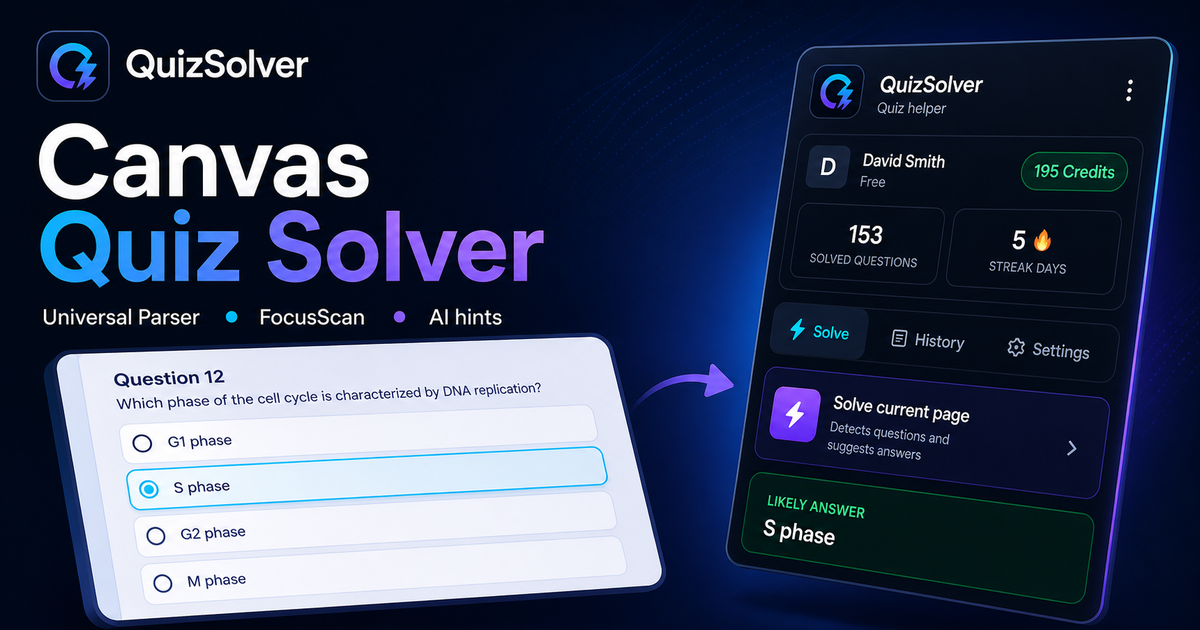
A platform page should show the real workflow, not only promise an answer. This preview connects the three parts that matter most: the universal visible-page parser, FocusScan for difficult layouts, and saved explanations in study history.

QuizSolver workflow preview for Canvas: universal parser, FocusScan and saved explanations

Adım adım kurulum

  1. 1Canvas test sayfasını açın ve soru ile seçeneklerin tam olarak yüklenmesini bekleyin.
  2. 2QuizSolver uzantı simgesine tıklayın ve Mevcut sayfayı çöz seçeneğini seçin. Özel tasarımlar için FocusScan kullanın.
  3. 3Önerilen yanıtı ve açıklamayı inceleyin. Otomatik tıklama olmadan ipucu görmek için İpucu Modu'nu kullanın.

Bu akışın özellikleri

  • ✦ Çözmeden önce soru metninin ve seçeneklerin tam yüklendiğinden emin olun.
  • ✦ İçerik resim, canvas, PDF veya özel bir formatta ise FocusScan kullanın.
  • ✦ Otomatik tıklama yerine hafif bir vurgu için İpucu Modu'nu açın.
  • ✦ Zor soruları notlarla kaydederek sınav öncesi tekrar materyaline dönüştürün.

Canvas ile Daha İyi Çalışın

QuizSolver, Canvas sorularını anlamanıza, notlar almanıza ve sınavlardan önce verimli bir şekilde tekrar yapmanıza yardımcı olur.

Platformlar

Diğer QuizSolver rehberleri

Platformunuzu seçin ve sınav sisteminize özel adım adım rehberi inceleyin.

FAQ

Bu akış hakkında sıkça sorulan sorular

QuizSolver Canvas üzerinde nasıl çalışır?+

QuizSolver, Canvas üzerindeki soru ve seçenekleri okuyarak yapay zeka ile anında doğru yanıtı ve açıklamasını sunar.

Soru otomatik olarak algılanmazsa ne yapmalıyım?+

FocusScan özelliğini kullanın ve sorunun bulunduğu alanı fareyle seçerek yapay zekaya gönderin.

Soruları daha sonra tekrar edebilir miyim?+

Evet, çözülen tüm soruları geçmişe kaydedebilir, notlar ekleyebilir ve deneme testleri çözebilirsiniz.

QuizSolver Canvas üzerinde hangi soru tiplerini destekler?+

QuizSolver çoktan seçmeli, tek cevaplı, metin kutuları, açılır menüler, eşleştirme ve FocusScan ile görsel soruları tanır.

QuizSolver Canvas üzerinde cevaplarımı otomatik olarak gönderir mi?+

Hayır. Uzantı önerilen yanıtı ve açıklamayı gösterir, ancak seçim ve gönderme kararı daima size aittir.

QuizSolver Canvas üzerindeki görselli soruları çözebilir mi?+

Evet. FocusScan ekranın herhangi bir bölgesini seçerek resimleri, grafikleri ve formülleri OCR ile okumanıza olanak tanır.

Hemen Başlayın

QuizSolver'ı Chrome'a Ekleyin

Ücretsiz 10 krediyle başlayın. Kurulum yalnızca birkaç saniye sürer.