Canvas LMS

Canvas Quiz Solver — AI Answers for Canvas LMS

Get instant AI answer suggestions and detailed explanations for every Canvas quiz question.

10+ platforms
AI answers in seconds
Free to install

Question detection

How QuizSolver works on Canvas

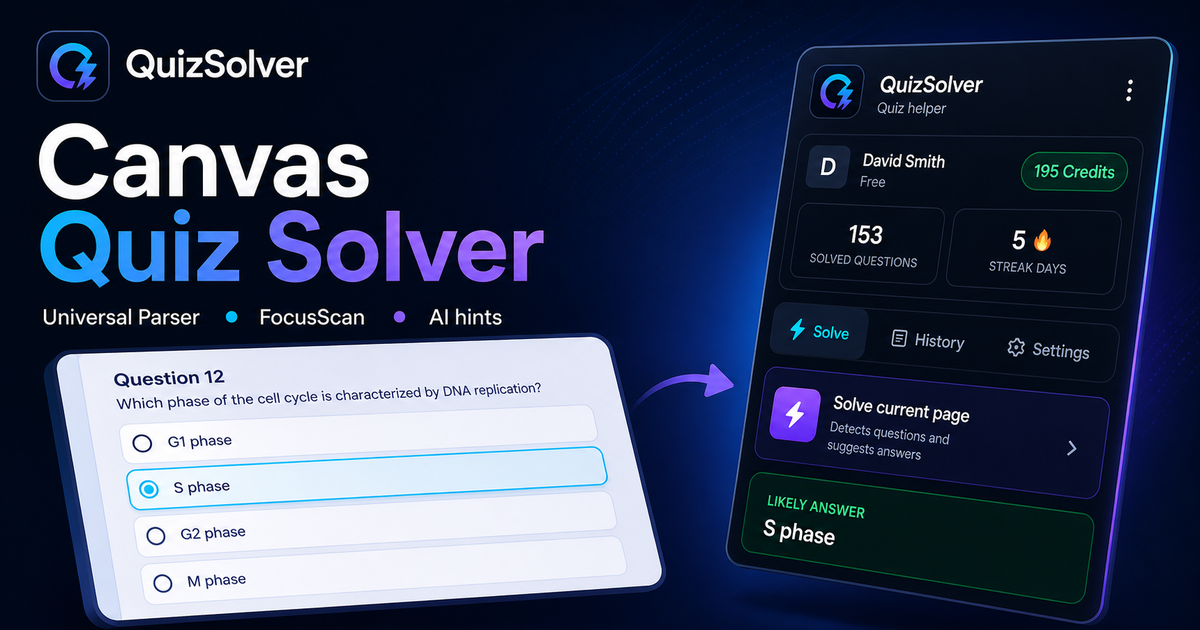
Canvas LMS can show quizzes through classic quizzes, New Quizzes and embedded LTI tools. QuizSolver reads the visible assessment area first, then FocusScan covers frames, images or custom layouts when the regular DOM is not enough.

The parser compares the question text with nearby answer choices, form controls, images and the visible page layout. If standard detection does not return a meaningful question, FocusScan lets you select the exact screen region and retry without mixing content from other parts of the page.

Every saved question can go to history with the answer, explanation and your own note. That means the platform workflow does not stop at a one-time hint: solved tasks become a private review library and practice quiz source.
Step-by-step setup

  1. 1Install QuizSolver from the Chrome Web Store, pin the QS icon, and sign in to the same account you use on the website.
  2. 2Open your Canvas quiz and wait until the current question and all visible answer options are loaded.
  3. 3Click the QuizSolver extension icon and choose Solve current page. If the page layout is unusual, use FocusScan and draw a box around the question area.
  4. 4Review the suggested answer and explanation before you submit. Turn on Hint mode when you want a discreet mark instead of automatic clicking.
  5. 5Save useful questions to History & quiz, add a short note, and later start a practice quiz from the saved set.

Supported question types and signals

  • Detects visible questions, answer choices, typed inputs, checkboxes and dropdowns.
  • FocusScan helps when a question is inside an image, a custom layout or a page section the normal parser cannot read as text.
  • Hint mode can show a subtle clue while leaving the final click to you.
  • History, notes and practice quizzes turn solved questions into study material.

Streamline Canvas Assignments

Canvas quizzes can be long and tedious. QuizSolver lets you tackle them with confidence by breaking down complex questions with AI reasoning.

Learn as you solve

Every answer suggestion comes with an optional step-by-step breakdown, so you learn the concepts behind the questions.

How QuizSolver reads Canvas questions

Canvas can show questions as plain text, answer tiles, form controls, images or custom page components. QuizSolver analyzes the visible question context and answer options before asking AI, so it does not rely on generic labels such as "Question 5".

Canvas question history

After solving, you can save the question, answer, explanation and your own note to history. That turns a one-time quiz attempt into review material you can filter, favorite and practice again later.

FAQ

Questions about this workflow

How do I start QuizSolver on Canvas?+

Open the Canvas quiz, click the QS icon in Chrome, then choose Solve current page. The extension reads only the visible question you ask it to solve.

What if the extension does not detect the question?+

Use FocusScan, drag a box around the question and answer area, then run the scan again. This helps with images, unusual layouts and page content that is not exposed as normal text.

Can I review the questions later?+

Yes. Save solved questions to History & quiz, add notes, mark favorites and create a practice quiz from your saved history.

Which Canvas question types does QuizSolver support?+

QuizSolver detects single-choice answers, multiple-choice answers, text fields, dropdowns, matching-style layouts, images and visible page content. For unusual components, FocusScan can read the selected screen region.

Does QuizSolver submit my Canvas quiz automatically?+

No. The extension shows an answer suggestion and explanation, while the final click or submission stays under your control. Hint mode can show only a subtle visual clue.

Can QuizSolver solve image questions on Canvas?+

Yes. FocusScan lets you select a screen region, so it works for images, PDF fragments, canvas content and layouts that are not exposed as normal page text.

Ready to install?

Add QuizSolver to Chrome and start with your first quiz.

The extension, question history, notes, and history quiz all work from one account.